This prompt is designed for a single, high-stakes job: reconciling the procedural steps demonstrated in a video tutorial or product demo against the official written documentation. The ideal user is a technical writer, QA engineer, or developer relations team member responsible for ensuring that a user following a video will not encounter a broken workflow, a missing prerequisite, or a UI state that no longer exists. The required context is a verbatim transcript of the video and the exact, relevant section of the documentation. The output is a step-level reconciliation report that flags every discrepancy, not a summary or a subjective review. Use this when you are shipping a new feature walkthrough, auditing an existing video library for version drift, or responding to a customer report that a demo step no longer works.
Prompt
Video-Demo-Claim-to-Documentation Accuracy Prompt
When to Use This Prompt
Defines the specific job, ideal user, required inputs, and clear boundaries for the Video-Demo-Claim-to-Documentation Accuracy Prompt.
This prompt is not a general-purpose video summarizer, a sentiment analyzer, or a QA tool for code functionality. It will not tell you if the video is 'good' or if the documentation is well-written. Its only function is to perform a structured comparison between a demonstrated procedure and a documented procedure. For the prompt to work reliably, you must provide a clean transcript with speaker labels and timestamps removed, and a documentation section that contains the canonical steps. The model will not infer missing context, so if the video references a prerequisite setup that is in a different documentation page, you must include that page in the [DOCUMENTATION] input. The prompt is most effective when the documentation is procedural and step-based; it will struggle with purely conceptual or reference-style documentation that lacks a clear sequence of actions.
Before using this prompt, confirm that a step-level reconciliation is the actual job to be done. If you need to check whether a video's claims about system performance, pricing, or theoretical concepts are accurate, use a claim-extraction and evidence-matching prompt from the Fact Checking pillar instead. If you need to verify that a UI screenshot matches a live API response, use the Screenshot-Claim-to-API-Response Validation Prompt. This prompt should be avoided when the video is a high-level overview without a demonstrated procedure, or when the documentation is a release blog post rather than a usage guide. After running the prompt, always have a subject-matter expert review the discrepancy report before publishing a fix or pulling a video. A flagged 'discrepancy' might be a deliberate simplification for teaching purposes, and only a human can make that judgment call.
Use Case Fit
Where the Video-Demo-Claim-to-Documentation Accuracy Prompt works and where it introduces risk. Use these cards to decide if this prompt fits your verification workflow before integrating it into a pipeline.
Good Fit: Step-by-Step Tutorial Verification
Use when: you have a recorded video demo or tutorial and a corresponding written guide or documentation page. The prompt excels at extracting sequential steps from the video, matching them to documented steps, and flagging missing, reordered, or contradictory instructions. Guardrail: Provide timestamps or chapter markers in the video context to improve step alignment accuracy.
Good Fit: UI State vs. Documented State Comparison
Use when: verifying that the user interface shown in a video matches the documented UI elements, labels, menus, or workflows. The prompt identifies discrepancies between what is demonstrated and what is written. Guardrail: Include screenshot frames or frame descriptions with explicit UI element names to reduce visual hallucination risk.
Bad Fit: Conceptual or Architectural Explanations
Avoid when: the video contains high-level conceptual explanations, architecture overviews, or opinionated best practices rather than procedural steps. The prompt is optimized for procedural claim extraction, not abstract concept matching. Guardrail: Route conceptual content to a dedicated fact-interpretation separation prompt before attempting claim-to-documentation matching.
Bad Fit: Live or Unscripted Demos Without Documentation
Avoid when: the video is an unscripted live demo, exploratory walkthrough, or ad-hoc presentation with no corresponding written documentation snapshot. The prompt requires a documentation artifact to compare against. Guardrail: If documentation does not exist, use a claim extraction prompt first to build a structured claim set, then flag all claims as unevaluable due to missing evidence.
Required Inputs: Video Transcript, Documentation Snapshot, and Version Context
What to watch: incomplete inputs cause false positives or missed discrepancies. The prompt needs a video transcript with timestamps, the full documentation text, and version identifiers for both artifacts. Guardrail: Validate that both the video recording date and documentation version date are present in the context. If version alignment is unknown, flag all findings with a version-drift caveat.
Operational Risk: Version Drift Between Video and Documentation
What to watch: the video was recorded against an older or newer version of the product than the documentation snapshot. This produces false discrepancy flags where both artifacts are correct for their respective versions. Guardrail: Require version metadata for both artifacts. When versions differ, add a version-mismatch warning to every output and suppress severity scoring until version alignment is confirmed by a human reviewer.
Copy-Ready Prompt Template
A production-ready prompt for comparing claims made in a video demonstration against a written documentation snapshot, producing step-level accuracy checks and discrepancy flags.
The following prompt template is designed to be copied directly into your AI harness. It instructs the model to act as a technical QA auditor, systematically comparing a video transcript against a documentation file. The core job is to identify where the documented procedure and the demonstrated procedure diverge, flagging missing steps, UI state mismatches, and version-drift indicators. Before using this prompt, ensure you have extracted a detailed, timestamped transcript from your video and have a clean text extraction of the relevant documentation section. This prompt is not a replacement for a full RAG pipeline if your documentation is massive; it is designed for a focused, one-to-one comparison of a specific procedure.
textYou are a technical documentation auditor. Your task is to compare a video demonstration transcript against a written documentation snapshot to verify procedural accuracy. You must identify discrepancies, missing steps, and UI state mismatches. # INPUTS - VIDEO_TRANSCRIPT: A timestamped transcript of the video demonstration. [VIDEO_TRANSCRIPT] - DOCUMENTATION_SNAPSHOT: The relevant section of the written documentation to verify against. [DOCUMENTATION_SNAPSHOT] - COMPARISON_CONTEXT: Any known version information for the video and documentation. [COMPARISON_CONTEXT] # OUTPUT SCHEMA Return a single JSON object with the following structure: { "summary": "A one-sentence executive summary of the overall accuracy.", "accuracy_score": "A string, one of 'high', 'medium', 'low', indicating the degree of alignment.", "step_checks": [ { "step_description": "A concise description of a single procedural step.", "video_evidence": "The exact quote and timestamp from the transcript showing this step.", "documentation_evidence": "The exact quote from the documentation describing this step.", "match_status": "One of 'exact_match', 'minor_deviation', 'major_deviation', 'missing_in_docs', 'missing_in_video'.", "discrepancy_detail": "If not an exact match, explain the specific difference, such as a different UI label, a missing click, or a reordered action." } ], "ui_state_discrepancies": [ { "ui_element": "The button, field, label, or state described.", "video_state": "How it appears or is named in the video.", "documentation_state": "How it is described in the documentation.", "severity": "One of 'critical', 'moderate', 'cosmetic'." } ], "missing_steps": [ "A list of steps found in the documentation but not demonstrated in the video." ], "extra_steps": [ "A list of steps demonstrated in the video but not mentioned in the documentation." ], "version_drift_indicators": [ "A list of any clues suggesting the video and documentation are from different software versions, such as different URLs, dated references, or deprecated features." ] } # CONSTRAINTS - Be meticulous. A 'minor_deviation' is a difference in wording that does not change the procedural outcome. A 'major_deviation' is a difference that could lead a user to a different result or error. - If a step is implied but not explicitly stated in one source, flag it as 'missing' in that source. - Do not hallucinate UI elements. Only report on elements explicitly mentioned in the provided text. - If the video transcript is too vague to verify a step, set match_status to 'major_deviation' and explain the ambiguity.
To adapt this template, replace the [VIDEO_TRANSCRIPT], [DOCUMENTATION_SNAPSHOT], and [COMPARISON_CONTEXT] placeholders with your actual data. The COMPARISON_CONTEXT is critical for calibrating the model's sensitivity to version drift; include any known version numbers or dates here. The output JSON schema is strict by design to allow for direct parsing in your application. After receiving the output, you should validate the JSON structure and check that all match_status values are from the allowed enum. For high-risk documentation, such as security procedures or compliance steps, a human reviewer must confirm all 'major_deviation' and 'missing_steps' flags before any action is taken.
Prompt Variables
Every placeholder required by the Video-Demo-Claim-to-Documentation Accuracy Prompt, its purpose, a concrete example, and how to validate it before sending the request.
| Placeholder | Purpose | Example | Validation Notes |
|---|---|---|---|
[VIDEO_TRANSCRIPT] | The full transcript of the video demo, including speaker labels and timestamps. | SPEAKER_1 [00:45]: Click the 'New Project' button in the top-left corner. | Check that the string is not empty and contains at least one timestamp marker. If the transcript is auto-generated, flag for potential OCR or ASR errors before use. |
[DOCUMENTATION_TEXT] | The complete text of the written documentation or help article to compare against. | Creating a Project
| Validate that the text is non-empty and parseable as Markdown or plain text. Confirm the documentation version or last-updated date matches the intended snapshot. |
[DOC_VERSION] | The version string or snapshot date of the documentation being used. | v2.4.1 | Must match a valid release tag or ISO 8601 date. If null, the prompt must instruct the model to note that version alignment could not be verified. |
[UI_ELEMENTS_OF_INTEREST] | A list of specific UI elements, buttons, or fields to focus the accuracy check on. | ['New Project button', 'Settings gear icon', 'Export dropdown'] | Must be a valid JSON array of strings. If empty, the prompt should default to checking all mentioned UI elements, which may increase latency and cost. |
[OUTPUT_SCHEMA] | The strict JSON schema the model must use to return its step-by-step accuracy analysis. | { "steps": [{ "step_number": "int", "transcript_action": "string", "doc_action": "string", "match_status": "string" }] } | Validate that the string is a syntactically correct JSON schema. The schema must include a 'match_status' field with a controlled enum (e.g., 'match', 'mismatch', 'missing_in_doc', 'missing_in_video'). |
[CONSTRAINTS] | Specific rules for the comparison, such as ignoring minor wording differences or flagging only functional discrepancies. | Flag only functional discrepancies. Ignore synonym differences like 'click' vs 'select'. Flag any UI element label mismatch. | Ensure constraints are explicit and do not contradict each other. Test the prompt with and without these constraints to measure their effect on the false-positive rate. |
[CONTEXT] | Additional context about the video, such as the product version shown or known bugs in the demo. | The video was recorded on product version v2.3.9. The 'Export as CSV' feature had a known UI bug in this version. | This field can be null. If provided, it must be a string. The prompt should instruct the model to use this context to explain potential discrepancies rather than flagging them as documentation errors. |
Implementation Harness Notes
How to wire the Video-Demo-Claim-to-Documentation Accuracy Prompt into an application or verification pipeline.
This prompt is designed to operate as a single step within a larger verification pipeline, not as a standalone chat interaction. The core workflow involves extracting atomic claims from a video transcript and visual description, then comparing each claim against a structured documentation snapshot. The implementation harness must manage version alignment between the video recording timestamp and the documentation revision, as version drift is the most common source of false-positive discrepancy flags. Before invoking the model, the harness should retrieve the documentation version that was current at the time of video recording, not the latest version, unless the task is explicitly a drift audit.
Wire the prompt into an application by first running a pre-processing step that extracts the video transcript (via Whisper or equivalent) and generates frame-level UI state descriptions using a vision-capable model. These become the [VIDEO_TRANSCRIPT] and [VISUAL_STATE_DESCRIPTIONS] inputs. The [DOCUMENTATION_SNAPSHOT] should be a structured extraction of the relevant documentation sections, ideally with step numbers, UI element references, and expected outcomes. The model output should conform to a strict JSON schema with fields for claim_id, claim_text, documentation_match (boolean), matched_doc_section, discrepancy_type (enum: missing_step, ui_state_mismatch, order_difference, extra_step, no_discrepancy), and confidence_score. Implement a post-processing validator that checks schema compliance, rejects hallucinated documentation section references, and flags any confidence_score below a configurable threshold for human review.
For production deployment, use a model with strong instruction-following and structured output capabilities, such as GPT-4o or Claude 3.5 Sonnet, with response_format set to json_schema where available. Implement a retry layer with exponential backoff for schema validation failures, but cap retries at three attempts before routing to a human review queue. Log every invocation with the video ID, documentation version, model version, and the full claim array for auditability. For high-stakes documentation (compliance, safety procedures, API contracts), always require human sign-off on any flagged discrepancy before publishing a correction. Avoid using this prompt for real-time or streaming video analysis; it is designed for batch processing of recorded demos against version-pinned documentation snapshots.
Expected Output Contract
The fields, types, and validation rules your application should enforce on the model response for the Video-Demo-Claim-to-Documentation Accuracy Prompt.
| Field or Element | Type or Format | Required | Validation Rule |
|---|---|---|---|
verification_id | string | Must match a UUID v4 pattern. Used to correlate this verification run in logs. | |
video_title | string | Non-empty string. Must match the [VIDEO_TITLE] input exactly to prevent cross-contamination. | |
documentation_version | string | Non-empty string. Must match the [DOC_VERSION] input exactly. | |
overall_accuracy_score | number | Float between 0.0 and 1.0. Must equal the average of all step-level accuracy scores. | |
steps | array of objects | Array length must be greater than 0. If empty, the response is invalid and should trigger a retry. | |
steps[].step_id | string | Must be a unique string within the array, formatted as 'step-{index}' starting from 1. | |
steps[].video_timestamp | string | Must match the regex pattern ^(\d{1,2}:)?\d{2}:\d{2}$ or be null. If null, a human-review flag must be set. | |
steps[].documented_step | string | If null, the step is missing from documentation. The application must set a 'missing_documentation' flag to true for this step. |
Common Failure Modes
What breaks first when verifying video demo claims against documentation, and how to guard against it.
Version Drift Between Video and Docs
What to watch: The video was recorded against an older version of the product, so UI elements, labels, or workflows shown in the demo no longer match the current documentation. The model may flag correct current-state documentation as inaccurate because it matches the video's outdated steps. Guardrail: Always require a [VIDEO_RECORDING_DATE] and [DOCUMENTATION_VERSION_DATE] as inputs. Instruct the model to treat version-skew as a distinct flag type rather than a step error, and to note when a discrepancy is likely due to version drift rather than documentation error.
Visual Claim Hallucination
What to watch: The model describes UI states, button labels, or workflow steps that are not actually visible in the video. This is especially common with low-resolution frames, fast transitions, or when the model confuses what it 'knows' about the product with what it actually observes. Guardrail: Constrain the prompt to require frame-level or timestamp-level grounding for every claim. Add an explicit instruction: 'If a UI element or step is not clearly visible in the provided frames, mark it as UNOBSERVABLE rather than inferring its state.' Pair with a secondary check that counts UNOBSERVABLE claims against expected step count.
Implicit Step Assumption
What to watch: The video demonstrates a workflow but skips or glosses over prerequisite steps (e.g., login, configuration, data setup). The model treats the documented prerequisite steps as 'extra' or 'incorrect' because they weren't shown in the demo, flagging valid documentation as inaccurate. Guardrail: Include a [PREREQUISITE_CONTEXT] block in the prompt that lists assumed setup steps. Instruct the model to classify documented steps as 'prerequisite (not shown in demo)' rather than 'missing from demo' or 'extra in docs.' Use a three-way classification: MATCH, PREREQUISITE_UNSHOWN, and DISCREPANCY.
UI-State-vs-Documented-State False Mismatch
What to watch: The video shows a UI in a specific state (e.g., empty dashboard, admin role, dark mode) while the documentation describes the default or general state. The model flags state differences as documentation errors rather than recognizing them as state-dependent variations. Guardrail: Require a [VIDEO_UI_STATE_CONTEXT] input describing the demo's starting state, user role, and configuration. Instruct the model to check whether a documented element could appear in a different state or role context before flagging it as a discrepancy. Add a 'state-dependent' classification for differences explained by UI state.
Temporal Ordering Mismatch
What to watch: The video demonstrates steps in a different order than the documentation lists them, but both orders are valid. The model flags an ordering discrepancy as an error when it's actually an alternative valid path. Guardrail: Instruct the model to distinguish between 'strictly ordered' steps (where sequence matters for correctness) and 'unordered' steps (where any sequence is valid). Require the output to include an ordering_constraint field per step group. Only flag ordering differences when the documentation explicitly requires a specific sequence.
Silent Failure on Missing Video Context
What to watch: The video is too short, too low-resolution, or missing segments, but the model doesn't flag the missing context and instead produces a high-confidence but incorrect comparison based on partial information. Guardrail: Add a pre-check step that estimates video completeness: 'Before comparing, list the steps you can confidently observe in the video. If fewer than [MIN_STEP_THRESHOLD] steps are observable, respond with INSUFFICIENT_VIDEO_EVIDENCE and stop.' Set a minimum observable step threshold based on the expected workflow length.
Evaluation Rubric
Use this rubric to test the Video-Demo-Claim-to-Documentation Accuracy Prompt before shipping. Each criterion targets a specific failure mode common in cross-format verification between video demonstrations and written documentation. Run these tests on a golden dataset of known video-documentation pairs with version-drift examples.
| Criterion | Pass Standard | Failure Signal | Test Method |
|---|---|---|---|
Step-level claim extraction completeness | All demonstrated UI actions, inputs, and navigation steps are extracted as discrete claims with timestamps | Missing steps that appear in the video but not in the extracted claim list; steps merged when they should be separate | Compare extracted claims against a human-annotated step list for 3 video segments; require >=95% recall on step detection |
Claim-to-documentation section matching accuracy | Each extracted claim is mapped to the correct documentation section with section ID or heading reference | Claims mapped to wrong sections; claims mapped to sections that don't exist; multiple claims incorrectly mapped to the same generic section | Use 10 pre-labeled claim-to-section pairs with known ground truth; require >=90% precision on section matching |
UI-state-vs-documented-state discrepancy detection | Differences between video UI state and documented UI state are flagged with specific field, element, or behavior description | False positives where matching states are flagged as different; false negatives where real discrepancies are missed | Test on 5 known discrepancy cases and 5 known match cases; require >=80% recall on discrepancies and >=90% precision on flags |
Missing-step flagging with evidence | Steps present in documentation but absent from the video demo are flagged with doc section reference and step description | Missing-step flags without specific doc references; false flags for steps that are actually present but described differently | Use 5 documentation sets with intentionally removed steps; require all removed steps to be flagged with correct section citations |
Version-drift handling | Prompt identifies when video recording version differs from documentation version and adjusts confidence or flags accordingly | Treating version differences as errors instead of drift; failing to note version metadata when available; silent assumption of version parity | Test with 3 video-doc pairs where versions differ by known increments; require version-awareness flag in output for all 3 cases |
Output schema compliance | Output matches the specified [OUTPUT_SCHEMA] exactly with all required fields present and correctly typed | Missing required fields; wrong data types; extra fields not in schema; malformed JSON that fails parsing | Validate output against JSON Schema for 20 test runs; require 100% schema compliance rate |
Citation format consistency | All evidence references use the specified citation format with video timestamps and documentation section identifiers | Citations missing timestamps; doc references without section numbers; inconsistent citation formatting across the output | Parse all citation fields from 10 outputs; require >=95% of citations to match the expected format regex pattern |
Hallucination resistance for unseen content | Prompt does not fabricate claims, UI elements, or documentation sections not present in the provided inputs | Invented button labels, menu items, or doc sections; fabricated discrepancy flags; hallucinated timestamps outside video duration | Include 3 test cases with known absent elements; require zero fabricated claims or sections in output |
Enabling Efficiency, Speed & Accuracy
Intelligent Analysis, Decision & Execution
We build AI systems for teams that need search across company data, workflow automation across tools, or AI features inside products and internal software.
Talk to Us
Search across company data
Give teams answers from docs, tickets, runbooks, and product data with sources and permissions.
Useful when people spend too long searching or get different answers from different systems.

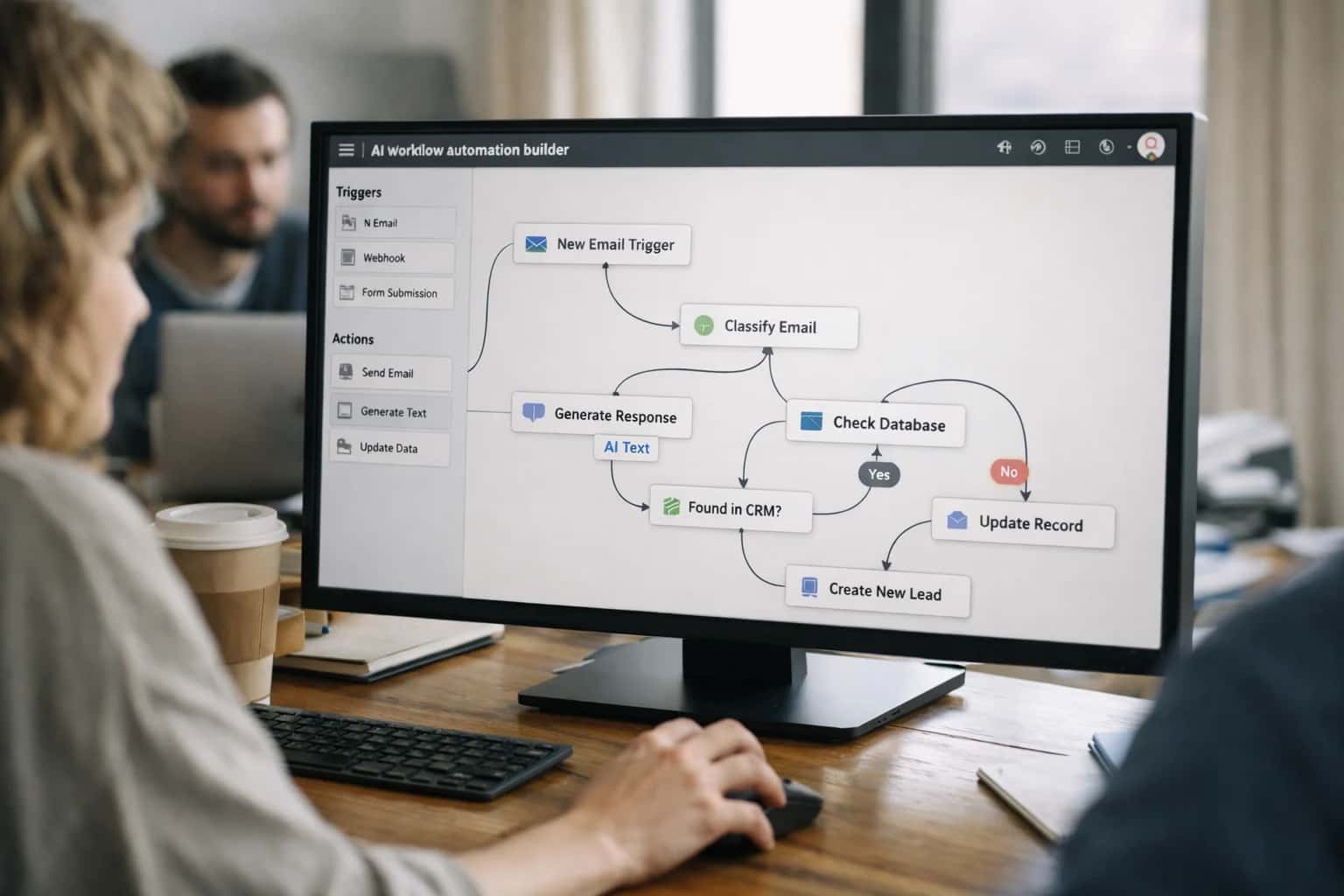
Automate internal workflows
Use AI to route work, draft outputs, trigger actions, and keep approvals and logs in place.
Useful when repetitive work moves across multiple tools and teams.

Add AI to products and internal tools
Build assistants, guided actions, or decision support into the software your team or customers already use.
Useful when AI needs to be part of the product, not a separate tool.
Adapt This Prompt
How to adapt
Use the base prompt with a single video segment and one documentation page. Accept unstructured text output. Focus on step-level claim extraction before adding strict schema validation.
codeExtract every demonstrated step from [VIDEO_TRANSCRIPT_OR_DESCRIPTION] and check whether it appears in [DOCUMENTATION_TEXT].
Watch for
- Hallucinated UI states not visible in the video
- Missing timestamp anchors for each claim
- Overly broad step matching that ignores parameter differences

About the author
Prasad Kumkar
CEO & MD, Inference Systems
Prasad Kumkar is the CEO & MD of Inference Systems and writes about AI systems architecture, LLM infrastructure, model serving, evaluation, and production deployment. Over 5+ years, he has worked across computer vision models, L5 autonomous vehicle systems, and LLM research, with a focus on taking complex AI ideas into real-world engineering systems.
His work and writing cover AI systems, large language models, AI agents, multimodal systems, autonomous systems, inference optimization, RAG, evaluation, and production AI engineering.
Partnered with leading AI, data, and software stack.





How We Work
Custom AI workflows for your Business
One-fit-all AI don't work for modern businesses. At Inferensys, we aim to understand your business & custom requirements; which we use to define most efficient agentic workflows, the data, and the tools for your business.
01
Review the use case
We understand the task, the users, and where AI can actually help.
Read more02
Pick the right approach
We define what needs search, automation, or product integration.
Read more03
Build the first useful version
We implement the part that proves the value first.
Read more04
Improve from there
We add the checks and visibility needed to keep it useful.
Read moreThe first call is a practical review of your use case and the right next step.
Talk to Us