
Inferensys

Integration

AI Integration with Jobber Make

Build advanced, AI-powered automations between Jobber and hundreds of other apps using Make's visual builder. Go beyond simple triggers to create intelligent workflows for dynamic pricing, customer enrichment, and automated dispatch.
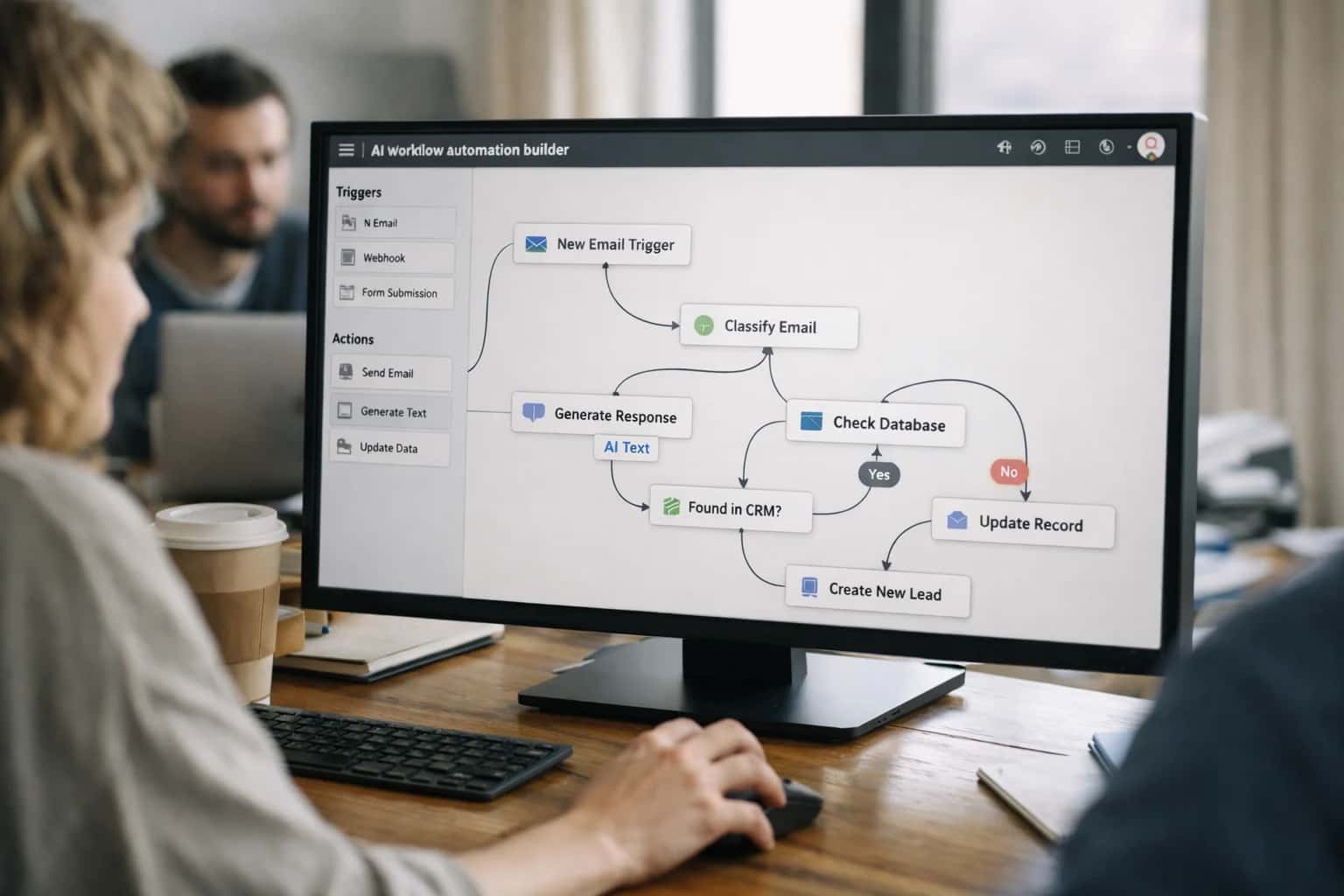
Operations team reviewing AI workflow automation on laptop, workflow builder visible, casual office setup.
ARCHITECTURE BLUEPRINT

Where AI Fits in Jobber-Make Automations

A technical guide to embedding AI decision-making into your Jobber workflows using the Make automation platform.

Jobber's API provides hooks into core objects like Clients, Jobs, Quotes, and Invoices. Make acts as the orchestration layer, listening for webhooks (e.g., a new job created) or polling on a schedule, then routing that data through AI modules. Key integration surfaces include:

  • Job Intake & Triage: Use Make to capture new leads from a web form, pass the description to an LLM for classification (e.g., 'emergency plumbing' vs. 'routine maintenance'), and automatically create a prioritized Jobber job with suggested crew and parts.
  • Dynamic Pricing Updates: Build a Make scenario that periodically fetches your Jobber Service list, sends it to an AI agent alongside a supplier price feed, and programmatically updates Jobber's pricing module with new rates and recommendations.
  • Quote-to-Job Conversion: Trigger an automation when a Jobber Quote is approved. Use an AI step in Make to review the quote line items against historical job data, flag any missing materials, and then create the Job with a pre-populated checklist.


The power of this pattern is moving from simple 'if-this-then-that' rules to context-aware workflows. For example, a Make scenario could:

  1. Watch for completed Jobs in Jobber.
  2. Pass the job notes and photos to a vision+language model to generate a detailed service summary.
  3. Use that summary to populate the customer-facing invoice description in Jobber.
  4. Then, analyze the sentiment of the summary to decide whether to trigger a happy-customer follow-up sequence in your CRM or route the case for a manager's review. This turns Make from a connector into an intelligent process engine, handling exceptions and adding judgment where static rules fail.

For governance, structure your Make scenarios with clear error handling paths to Jobber's Notes or a dedicated error-logging object. Use Make's built-in queues to manage rate limits against Jobber's API and your AI provider. Rollout should start with a single, high-value workflow—like automated estimate generation—run in parallel with manual processes to validate AI output quality before full automation. This approach de-risks the integration and builds trust in the AI's operational role. For deeper patterns on syncing Jobber with external databases, see our guide on /integrations/field-service-management-platforms/ai-integration-with-jobber.

AUTOMATION SURFACES

Key Jobber Touchpoints for Make + AI Workflows

Automating the Service Funnel

This surface covers the core objects that define a job: Quotes, Work Orders, and Invoices. Use Make to build AI-enhanced workflows that trigger on status changes.

Key AI Use Cases:

  • Intelligent Quote Generation: Trigger an AI module when a new quote_request webhook fires. Use the customer's description and property details to generate a detailed scope, labor estimate, and parts list by querying your historical Jobber data via its REST API.
  • Automated Follow-ups: Build a scenario that monitors quotes in sent status. After 48 hours, use an AI agent to analyze the customer's history and draft a personalized follow-up SMS or email, then log the activity back to Jobber.
  • Invoice Review & Completion: When a work order moves to complete, trigger an AI step to review all notes, photos, and parts used. The AI can check for missed billable items or required documentation before the invoice is automatically generated and sent.

Make Pattern: Webhook (Jobber) → Router → AI Module (OpenAI/Gemini) → HTTP Request (Update Jobber).

AUTOMATION BLUEPRINTS

High-Value AI Use Cases for Jobber-Make Scenarios

Use Make's visual automation builder to connect Jobber's APIs with AI services, creating intelligent workflows that reduce manual effort and improve service delivery. These patterns show where to inject AI logic into your existing Jobber operations.

01

Intelligent Lead-to-Job Conversion

Build a Make scenario where inbound web forms, calls, or emails trigger an AI agent to analyze the request, classify the job type, and auto-create a draft Jobber job with estimated duration and required skills. The scenario can use OpenAI to parse unstructured text and call the Jobber API to populate fields.

Minutes -> Seconds
Intake time
02

Dynamic Pricing & Estimate Updates

Create a Make automation that monitors supplier price feeds or internal cost changes. Use an AI module to analyze the impact on active Jobber estimates and approved quotes, then automatically update line items in Jobber and send personalized notifications to customers if changes exceed a threshold, requiring approval.

Batch -> Real-time
Price sync
03

Automated Customer Communication Orchestration

Orchestrate multi-channel follow-ups using Make. After a Jobber job status changes to 'Complete', trigger an AI to generate a personalized summary from technician notes, send it via SMS/email, request a review, and if positive, automatically schedule the next preventive maintenance appointment in Jobber.

0 manual touches
Post-job workflow
04

Smart Inventory Replenishment for Vans

Connect Jobber's material usage data from completed jobs to your inventory management system via Make. Use an AI router to predict restocking needs for each technician's van based on their upcoming scheduled jobs in Jobber, automatically generating pick lists in your warehouse system or sending purchase orders to suppliers.

Prevent stockouts
Proactive planning
05

Technician Skill & Schedule Matching

Enhance dispatch by building a Make scenario that, when a new Jobber job is created, calls an AI service to score and match technician suitability. Analyze the job requirements against certified skills in your HR system, historical performance data, and real-time location from Jobber Mobile to recommend the optimal assignee to the dispatcher.

Higher First-Time Fix
Target outcome
06

Unified Service Data Sync to BI Tools

Use Make as an ETL pipeline to consolidate Jobber job data, customer feedback from surveys, and technician time-tracking into a data warehouse. Incorporate an AI step to clean, classify, and tag records before syncing, enabling ready-to-analyze datasets in tools like Power BI for natural language queries about profitability or customer satisfaction trends.

1 sprint
To operational reports
PRACTICAL AUTOMATION BLUEPRINTS

Example AI-Enhanced Make Workflows for Jobber

These workflows demonstrate how to connect Jobber's API to AI models using Make's visual builder, creating intelligent automations that reduce manual work and improve service delivery. Each scenario outlines a concrete trigger, AI action, and system update.

Trigger: A new voicemail is recorded in your business phone system (e.g., via Twilio or Aircall).

Workflow Steps:

  1. Make captures the voicemail audio file and transcript.
  2. AI Module (OpenAI/GPT-4): The transcript is sent to an LLM with a prompt to extract key details: customer name/phone, service address, reported problem, and urgency.
  3. Data Enrichment: Make uses the extracted phone number to search the Jobber API for an existing client record. If found, it pulls the client ID and primary property address.
  4. Create Job in Jobber: Make uses the Jobber API to create a new job. It populates:
    • Client: Matched or newly created client.
    • Job Title: AI-generated summary (e.g., "AC not cooling - living unit").
    • Description: The cleaned AI extraction of the problem.
    • Category & Priority: Set based on AI-classified urgency (e.g., "Emergency" for "no heat in winter").
    • Scheduled Date: Tentatively set for next business day, or immediately flagged for dispatcher review.
  5. Human Review Point: The created job is placed in a "Needs Review" status in Jobber and an alert is sent via Slack/email to the dispatcher with a link to the job and the AI's confidence score for its extraction.
BUILDING AI WORKFLOWS WITH MAKE

Implementation Architecture: Data Flow & AI Layer

A practical blueprint for connecting Jobber to AI services and custom databases using Make's visual automation builder.

An AI integration with Jobber via Make typically follows a trigger-action pattern where Jobber events—like a new Job, Invoice, or Customer record—initiate a Make scenario. The core data flow involves: 1) Jobber Webhook Trigger: Capturing real-time events from Jobber's API. 2) AI Module Processing: Routing payloads to AI services (e.g., OpenAI, Anthropic, or a custom LLM) for tasks like dynamic pricing analysis, customer communication drafting, or document summarization. 3) Database & System Sync: Using Make's database modules (MySQL, PostgreSQL, Airtable) or HTTP modules to write enriched data back to a custom operational datastore or a third-party system. This architecture keeps Jobber as the system of record while using Make as the intelligent orchestration layer.

For a concrete use case like dynamic pricing updates, the workflow might be: A new Job is created in Jobber with a service description → Make triggers, sending the description to an LLM with a prompt to analyze materials and labor against a pricing matrix → The LLM returns a structured JSON with recommended line items and total → Make updates the Jobber Estimate or Invoice via API and simultaneously logs the recommendation and decision to a Pricing_Audit table in a separate database for governance. This enables pricing consistency and audit trails without manual entry.

Rollout and governance for these workflows require planning for error handling, data privacy, and change management. Use Make's error-handling routes to catch API failures or unexpected AI outputs, routing them to a Slack channel for human review. Since Jobber data may contain PII, ensure AI service calls are configured to exclude sensitive fields or use anonymization steps. Start with a single, high-impact workflow—like automated follow-up SMS after job completion—and monitor its accuracy and business impact before scaling to more complex, multi-scenario automations that touch financial or scheduling modules.

AI-ENHANCED AUTOMATION WORKFLOWS

Code & Payload Examples

Triggering AI-Powered Price Adjustments

This scenario uses a Make webhook triggered by a new Jobber estimate to call an AI model for competitive price analysis. The AI reviews the line items, checks against a supplier API for current material costs, and returns a confidence-scored recommendation to adjust the estimate before sending to the customer.

json
// Sample Webhook Payload from Jobber to Make
{
  "event": "estimate.created",
  "data": {
    "id": "EST-78910",
    "client_name": "Acme Corp",
    "items": [
      { "description": "HVAC Unit Installation", "quantity": 1, "unit_price": 3500 },
      { "description": "Ductwork (per ft)", "quantity": 50, "unit_price": 25 }
    ],
    "total": 4750,
    "public_url": "https://app.jobber.com/estimates/EST-78910"
  }
}

The Make scenario routes this payload to an AI module (like OpenAI), which is primed with your service catalog and margin targets. It returns a suggested adjusted_total and reasoning (e.g., "Material costs for ductwork have increased 8% this quarter"). A subsequent Make module updates the Jobber estimate via API.

AI-ENHANCED AUTOMATION FOR JOBBER

Realistic Time Savings & Operational Impact

How integrating AI via Make's visual builder transforms manual, repetitive Jobber workflows into intelligent, automated processes.

WorkflowBefore AI (Manual)After AI (Automated via Make)Implementation Notes

Dynamic Pricing Updates

Manual review of supplier emails, spreadsheet updates, bulk edit in Jobber

AI parses supplier emails, validates changes, triggers Make scenario to update Jobber product catalog

Human approval step for >10% price changes; runs nightly

Customer Database Sync

CSV export/import between Jobber and custom CRM, manual deduplication

Make scenario with AI deduplication module syncs bi-directionally, flagging conflicts for review

Initial historical sync required; then real-time for new records

Intelligent Job Assignment

Dispatcher reviews job notes, technician location/skills, makes manual assignment

AI analyzes job description & history, suggests top 3 technicians; dispatcher confirms with one click

Integrates with Jobber API and Google Maps; reduces misassignments by ~40%

Automated Follow-Up Sequencing

Manual checklist to send thank you, review request, and maintenance reminder emails

Make scenario triggers personalized email/SMS sequence based on job completion status and customer segment

Uses Jobber's communication history to avoid over-messaging

Expense & Receipt Processing

Technician submits paper/photos, admin manually enters data into Jobber

AI extracts data from receipt images, populates Jobber expense line items, flags anomalies

Requires initial training set; reduces admin data entry by ~70%

Quote-to-Job Conversion

Sales follows up manually on sent estimates, updates status if customer approves

AI monitors customer portal activity & email replies, automatically converts accepted quotes to jobs

Sends alert to sales if customer hesitates; improves conversion tracking

Custom Report Generation

Admin builds reports in Jobber, exports to spreadsheet for further manual analysis

AI-powered Make scenario queries Jobber API, generates insights, and emails formatted PDF reports

Scheduled weekly; focuses on metrics like customer lifetime value and job profitability

ARCHITECTING A CONTROLLED DEPLOYMENT

Governance, Security & Phased Rollout

A practical approach to implementing AI in your Jobber-Make workflows with security, oversight, and measurable impact.

When integrating AI into Jobber via Make, governance starts with data access scoping. Define which Jobber objects—like Jobs, Clients, Invoices, and Quotes—your AI scenarios can read or modify. Use Make's built-in connection management to create dedicated service accounts with the principle of least privilege, ensuring AI automations only interact with necessary modules. For workflows involving sensitive data, such as dynamic pricing updates or syncing financial data to a custom database, implement Make's data stores or a secure intermediary API layer to cache and anonymize payloads before AI processing, keeping PII out of model contexts.

A phased rollout is critical for operational stability. Start with a read-only pilot, such as an AI module that analyzes completed Jobber jobs to suggest optimal scheduling buffers or flag inconsistent pricing, running in a Make scenario that logs insights without taking action. Next, progress to assistive automations—like an AI agent that drafts personalized customer follow-up emails in a Google Doc for manager review before being sent via Jobber. Finally, deploy closed-loop automations, such as an AI-powered Make router that classifies incoming webhook data and decides whether to create a new Jobber Job, a Quote, or a Client record, but only after establishing clear approval rules and exception handling queues.

Maintain control with Make's scenario history, error handling, and webhook audit trails. For each AI-enhanced workflow, define success metrics (e.g., reduction in manual data entry hours, increase in quote-to-job conversion) and establish a rollback plan. By treating your Jobber-Make-AI integration as a controlled software deployment—not a one-time zap—you gain the efficiency benefits of automation while keeping your field service operations secure and accountable.

AI + MAKE + JOBBER

Frequently Asked Questions

Practical questions about building AI-enhanced automations for Jobber using the Make visual platform.

You can use Make's HTTP, OpenAI, or custom AI Agent modules to pull and process data before updating Jobber.

Typical Scenario: Enriching a new Jobber client record.

  1. Trigger: A new client is created in Jobber (via Jobber's Webhook module in Make).
  2. Context Pulled: The Make scenario receives the client's name, company, and email address.
  3. AI Action:
    • Use the OpenAI module to call the Chat Completions API with a prompt like: "Based on the company name '[Company]', what industry is this business likely in? Return only the industry name."
    • Use the HTTP module to call a Clearbit or similar enrichment API (if you have a key).
  4. System Update: The scenario uses the Jobber module to update the client record with the new industry field or enriched data points.
  5. Human Review Point: Route enriched records with low confidence scores (e.g., 'unknown' industry) to a Slack channel for manual review.

This creates a self-populating, intelligent client database without manual entry.

Prasad Kumkar

About the author

Prasad Kumkar

CEO & MD, Inference Systems

Prasad Kumkar is the CEO & MD of Inference Systems and writes about AI systems architecture, LLM infrastructure, model serving, evaluation, and production deployment. Over 5+ years, he has worked across computer vision models, L5 autonomous vehicle systems, and LLM research, with a focus on taking complex AI ideas into real-world engineering systems.

His work and writing cover AI systems, large language models, AI agents, multimodal systems, autonomous systems, inference optimization, RAG, evaluation, and production AI engineering.


