
Inferensys

Integration

AI Integration with SharePoint Power Automate

Build intelligent, event-driven workflows that analyze SharePoint document content using AI. Trigger Power Automate flows based on sentiment, extracted entities, or summarization results to automate routing, tagging, and notifications.
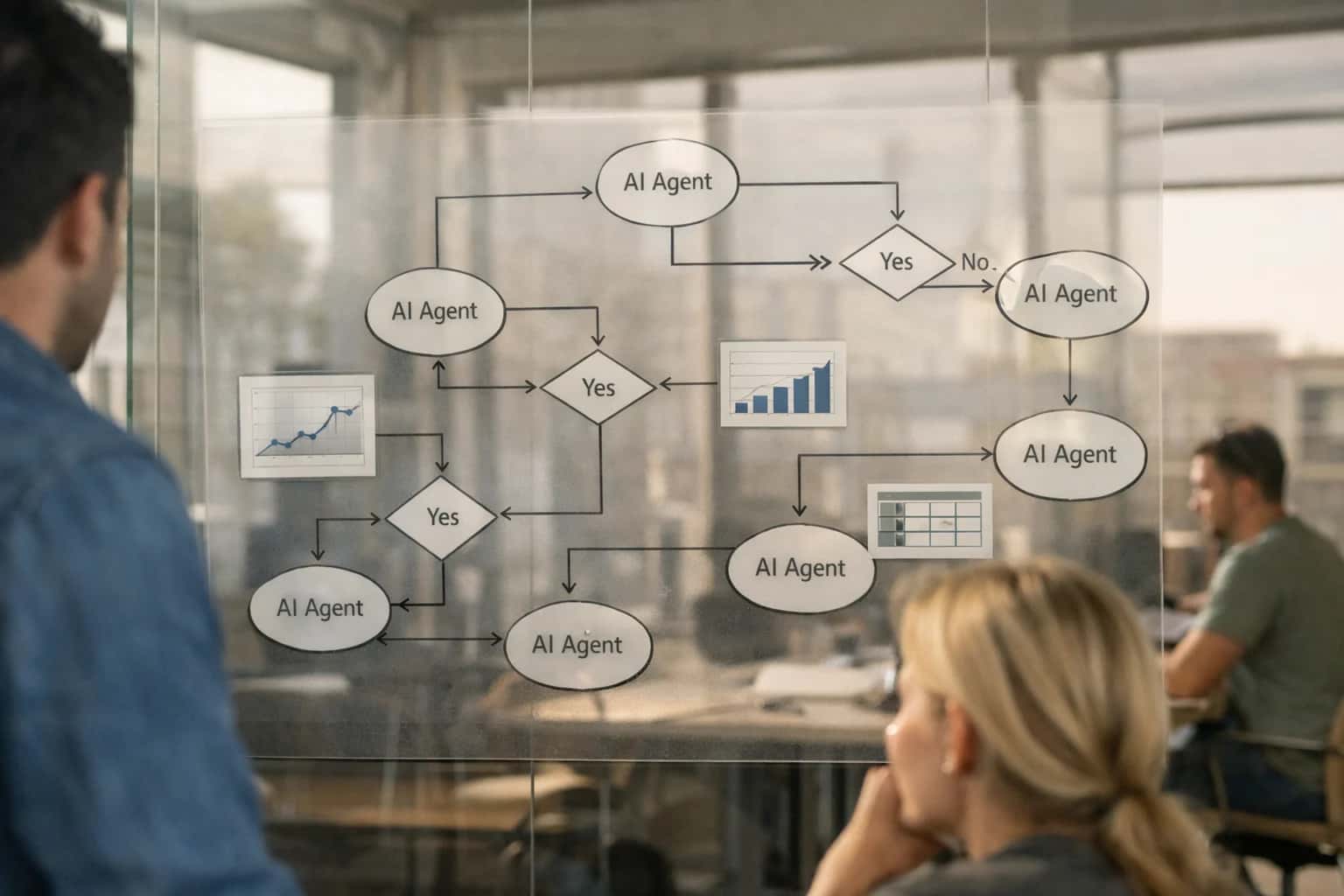
Developer designing multi-agent workflow on laptop, architecture diagram on screen, casual home office setup with afternoon light.
ARCHITECTURE & ROLLOUT

Where AI Fits into SharePoint and Power Automate

A practical guide to injecting AI decision points into SharePoint-driven business processes using Power Automate as the orchestration layer.

AI integration for SharePoint and Power Automate typically follows an event-driven pattern: a document is uploaded to a SharePoint Document Library, a Power Automate cloud flow is triggered, and that flow calls an AI service to analyze the content. The AI's output—such as a sentiment score, extracted entities, or a summary—then dictates the next workflow step. This transforms Power Automate from a simple connector into an intelligent router, capable of actions like:

  • Sending a contract to Legal for review only if a 'liability' clause is detected.
  • Routing a customer feedback form to a manager if sentiment is 'negative'.
  • Auto-tagging an invoice with metadata like vendor, amount, and due_date for automated filing.
  • Flagging a resume in a recruitment library if key skills are missing.

Implementation hinges on connecting Power Automate's HTTP Request action or a pre-built AI connector (like Azure OpenAI) to your inference endpoint. The flow receives the document content, often via the Get file content action, sends it for processing, and parses the JSON response. You then use Condition actions to branch the workflow. For governance, consider:

  • Using Power Automate's approval actions for human-in-the-loop review of AI suggestions.
  • Logging all AI decisions and inputs to a SharePoint List or Azure Log Analytics for audit trails.
  • Implementing service principal authentication for the AI API call to keep credentials secure.
  • Setting retry policies and failure notifications for the HTTP action to handle model latency or downtime.

Rollout should be phased, starting with a single, high-volume document library and a non-critical workflow. Use Power Automate's run history and SharePoint versioning to monitor accuracy and impact. A common pitfall is sending entire documents to the AI model; for cost and performance, pre-process with SharePoint's built-in features—use SharePoint Syntex for initial classification or extract text from known file types before sending only the relevant segments. This architecture keeps your core content and workflow logic within the Microsoft 365 ecosystem while adding AI intelligence precisely where it's needed, without a platform migration. For complex multi-step orchestrations, consider our guide on AI Agent Builder and Workflow Platforms.

ARCHITECTURE BLUEPRINT

AI Integration Touchpoints in SharePoint & Power Automate

Automating Workflows from Content Changes

Power Automate can monitor SharePoint document libraries and lists for specific events, using the detected change as a trigger for an AI action. This creates event-driven intelligence without manual intervention.

Key Integration Points:

  • When a file is created (properties only): Trigger on metadata upload to kick off classification or summarization before the file is even opened.
  • When an item is created or modified: Use changes to a list item (e.g., a support ticket list) to invoke an AI agent for triage or enrichment.
  • For a selected file: Build button-triggered flows in the SharePoint UI for on-demand AI analysis.

Example Workflow: A new contract PDF is uploaded to a library. The flow triggers, sends the file to an AI service for clause extraction, and writes the extracted parties, dates, and obligations back to the file's metadata columns or a connected list.

SHAREPOINT WORKFLOW AUTOMATION

High-Value AI + Power Automate Use Cases

Transform static document repositories into intelligent, self-executing systems. Connect AI models to SharePoint events via Power Automate to automate classification, summarization, data extraction, and compliance actions based on document content.

01

Intelligent Document Ingestion & Routing

Trigger a Power Automate flow on document upload to a SharePoint library. The flow calls an AI model to classify the document type (invoice, contract, resume), extract key metadata (vendor, date, amount), and automatically route it to the correct team's folder or approval workflow.

Batch -> Real-time
Processing model
02

Automated Compliance & Retention Tagging

Use AI to scan newly added or modified documents for sensitive content (PII, financial data, proprietary terms). Based on the analysis, Power Automate applies the appropriate SharePoint compliance labels, retention policies, and access permissions, ensuring governance is enforced at ingestion.

Same day
Policy enforcement
03

Contract & Agreement Obligation Tracking

When a final contract is saved to a designated SharePoint library, Power Automate triggers an AI analysis to extract key clauses, dates, parties, and obligations. It then creates tracking items in a SharePoint list or Microsoft Planner, setting up reminders and workflows for milestone reviews and renewals.

Manual -> Automated
Obligation management
04

AI-Powered Search & Knowledge Q&A Agent

Build a Power Automate flow that acts as a conversational interface to your SharePoint knowledge base. A user submits a question via a Microsoft Form or Teams message. The flow uses AI to perform semantic search across document libraries, synthesizes an answer from relevant content, and returns a summary with source links.

Hours -> Minutes
Information retrieval
05

Dynamic Report Generation & Distribution

Schedule a Power Automate flow to query and consolidate data from multiple SharePoint lists and libraries. Use AI to analyze trends, generate narrative summaries, and highlight anomalies. The flow then assembles a formatted report (Word/PPT) and distributes it via email or posts it to a Teams channel on a scheduled cadence.

1 sprint
Development cycle
06

Automated Meeting Minute Synthesis

Connect Power Automate to a Teams meeting recording or transcript saved in SharePoint. Trigger an AI process to summarize key decisions, extract action items with owners, and identify unresolved topics. The flow then creates a structured meeting minute document in SharePoint and assigns tasks via Planner or To Do.

Hours -> Minutes
Note creation
SHAREPOINT POWER AUTOMATE

Example AI-Powered Workflow Automations

These practical examples show how to inject AI decision points into SharePoint workflows using Power Automate. Each flow is triggered by a SharePoint event, uses an AI service to analyze content, and takes a conditional action—reducing manual review and accelerating business processes.

Trigger: A new contract document is uploaded to a designated SharePoint library.

AI Action:

  1. The Power Automate flow sends the document to an AI service (e.g., Azure OpenAI, a custom model) for analysis.
  2. The model extracts key metadata: contract type, parties, effective/expiry dates, and total value.
  3. It performs a risk scan for specific clauses (e.g., auto-renewal, liability caps, termination for convenience).

System Update:

  • The extracted metadata is written back to the SharePoint item's columns.
  • Based on the contract value and risk score, the flow dynamically routes the approval:
    • Low-risk, under $10k → Auto-approve and notify stakeholders.
    • Medium-risk or $10k-$50k → Route to department head via an approval task.
    • High-risk or over $50k → Route to Legal and Finance for sequential review.
  • A summary of the AI analysis is added to the approval task for human reviewers.

Human Review Point: All medium and high-risk contracts are paused for human approval. Reviewers can see the AI's extracted data and risk flags directly in the approval task.

FROM EVENT TO ACTION

Implementation Architecture: Connecting the Dots

A practical blueprint for connecting AI models to SharePoint workflows via Power Automate.

The integration is event-driven, using Power Automate as the orchestration layer. A typical flow begins when a document is added or modified in a designated SharePoint library. This triggers a Power Automate flow, which calls a secure API endpoint hosted by Inference Systems. The payload includes the document's unique identifier and metadata. Our service retrieves the file via the Microsoft Graph API, processes it through a configured AI model—for sentiment analysis, entity extraction, or summarization—and returns a structured JSON response. This response contains the extracted insights (e.g., sentiment_score, key_entities, summary) which Power Automate then uses to make decisions.

Within Power Automate, the AI output becomes a dynamic condition for workflow branching. For example, a contract with a sentiment_score flagged as 'negative' can be automatically routed to a legal review folder and an approval task assigned to a manager. Extracted key_entities like 'Project Phoenix' or 'Client ABC' can be written back to SharePoint column metadata, enabling powerful filtered views and reporting. Summarization results can be appended to a list item or sent via adaptive card in a Teams channel for quick stakeholder review. This turns static document storage into an intelligent, self-routing system.

Governance and rollout require careful planning. We recommend starting with a pilot library and a single AI model to validate accuracy and performance. Implement service accounts with least-privilege Graph API permissions and secure the integration endpoint with Azure AD authentication. Use Power Automate's built-in error handling and retry policies, and log all AI processing results and actions to a separate Azure Log Analytics workspace for auditability. This architecture ensures AI augments your SharePoint governance model rather than bypassing it, enabling controlled, incremental scaling across departments and use cases.

AI + POWER AUTOMATE PATTERNS

Code & Payload Examples

On File Upload: Analyze & Tag

This pattern triggers when a document is added to a specific SharePoint library. The Power Automate flow calls an AI service to analyze the document's content, then updates the SharePoint item with extracted metadata.

Typical AI Tasks:

  • Sentiment analysis on customer feedback PDFs.
  • Entity extraction (names, dates, amounts) from uploaded forms.
  • Document classification (e.g., Invoice, Contract, Resume).

Flow Logic:

  1. Trigger: When a file is created in a folder (SharePoint).
  2. Action: Get file content.
  3. Action: HTTP Request to your AI endpoint (e.g., Inference Systems API).
  4. Action: Update file properties in SharePoint with the AI response (e.g., set a DocumentType column).
  5. Conditional Branching: Route the file to different libraries or teams based on the AI classification.
AI-POWERED SHAREPOINT WORKFLOWS

Realistic Time Savings & Operational Impact

How integrating AI into SharePoint via Power Automate transforms manual, document-centric processes into intelligent, automated workflows.

Workflow / TaskBefore AI IntegrationAfter AI IntegrationKey Notes & Impact

Contract Review & Routing

Manual reading and keyword search for routing

AI extracts key clauses, scores risk, and auto-assigns

Reduces initial review from hours to minutes; ensures consistent routing

Invoice Processing

Manual data entry from PDFs into lists

AI extracts line items, validates against PO, populates list

Cuts processing time from 15-20 mins to 2-3 mins per invoice

Employee Onboarding Packet Intake

Admin manually sorts and files uploaded documents

AI classifies documents (I-9, W-4), validates completeness, files

Saves 30+ minutes per new hire; eliminates misfiling

RFP Response Drafting

Manual search across document libraries for past content

AI RAG system finds relevant past proposals, suggests boilerplate

Accelerates first draft creation from days to hours

Support Ticket Triage from Attachments

Agent must open and read each attached document

AI summarizes attachment content, suggests priority and category

Reduces triage time from 10+ minutes to under 1 minute per ticket

Meeting Minutes & Action Item Logging

Manual transcription and note-taking

AI transcribes audio, summarizes discussion, extracts action items to a list

Turns a 1-hour meeting into a 5-minute review and task creation process

Policy Document Compliance Check

Periodic manual audit against regulation texts

AI continuously compares policy library to regulatory updates, flags gaps

Shifts from reactive, quarterly audits to proactive, weekly monitoring

Content Expiration & Review Alerts

Static date-based alerts on metadata

AI analyzes document content and usage to recommend retention or review

Prevents premature deletion of high-value docs; automates records management

ARCHITECTING CONTROLLED AI WORKFLOWS

Governance, Security & Phased Rollout

A secure, governed rollout for AI-powered SharePoint workflows ensures value is delivered without disrupting compliance or user trust.

A production integration connects your AI service (e.g., Azure OpenAI, a fine-tuned model) to Power Automate via a secure API gateway. The typical pattern is event-driven: a When a file is created or modified (properties only) trigger in a SharePoint document library fires a Power Automate flow. This flow calls your AI endpoint—hosted in your Azure tenant or a private Inference Systems environment—passing the file's secure Graph API URL. The AI service performs the requested task (sentiment analysis, entity extraction, summarization) and returns a structured JSON payload. Power Automate then uses Apply to each and conditional logic to write results back to SharePoint list items, update file metadata, post to a Teams channel, or trigger a secondary approval flow.

Governance is enforced at multiple layers. At the data layer, the integration uses Microsoft Entra ID (Azure AD) managed identities or service principals for authentication, ensuring the AI service only accesses documents the flow has permission to read. All document processing should occur in-memory or within your secure cloud boundary; no customer data is retained by the AI model post-processing unless explicitly configured for compliance. Audit trails are maintained in two places: Power Automate's run history logs the flow execution and API call results, while your AI service should log the document ID, operation type, and timestamp for traceability. For high-sensitivity content, you can implement a pre-processing step using Microsoft Purview sensitivity labels to bypass AI analysis for classified documents.

A phased rollout mitigates risk and proves value. Phase 1 (Pilot): Target a single, non-critical document library (e.g., a team's meeting notes) with a single use case like summarization. Use a manual approval step in the flow to review AI outputs before they are committed. Phase 2 (Controlled Expansion): Expand to 2-3 libraries, automate the approval for high-confidence results, and add a second use case like entity extraction for project code tagging. Implement a dashboard (e.g., in Power BI) to track volume, accuracy, and user feedback. Phase 3 (Scale): Operationalize the integration, moving from ad-hoc flows to a centralized, reusable solution component. Introduce automated quality checks, such as comparing AI-extracted entities against a SharePoint term set, and establish a review cycle for prompt and model performance. This approach, supported by Inference Systems' integration templates and operational runbooks, de-risks the move from manual process to intelligent automation.

IMPLEMENTATION AND WORKFLOW DETAILS

Frequently Asked Questions

Practical questions for architects and administrators planning to connect AI models to SharePoint workflows via Power Automate.

The standard pattern uses Power Automate's HTTP action to call a secure Inference Systems API endpoint. The flow should:

  1. Trigger: On document creation/modification in a specific library.
  2. Context Pull: Use the Get file content action for the target file.
  3. Secure Transmission: Send the file content (or extracted text) via a POST request to a private API endpoint. The endpoint should be secured with an API key passed in the header, which is stored as a secret in Azure Key Vault and referenced in the Power Automate connection.
  4. System Update: The API returns structured JSON (e.g., extracted entities, summary, classification). Use Power Automate to parse this JSON and update the SharePoint item's metadata columns or create a log in a separate list.

Key Governance: Never log full document content in Power Automate run histories. Use the API's built-in audit trail for content processing logs.

Prasad Kumkar

About the author

Prasad Kumkar

CEO & MD, Inference Systems

Prasad Kumkar is the CEO & MD of Inference Systems and writes about AI systems architecture, LLM infrastructure, model serving, evaluation, and production deployment. Over 5+ years, he has worked across computer vision models, L5 autonomous vehicle systems, and LLM research, with a focus on taking complex AI ideas into real-world engineering systems.

His work and writing cover AI systems, large language models, AI agents, multimodal systems, autonomous systems, inference optimization, RAG, evaluation, and production AI engineering.



