Standard SharePoint alerts notify users of changes to lists, libraries, or items, but they often lack context, creating notification fatigue. An AI integration layer intercepts these alert triggers—via the SharePoint webhook service or by monitoring the Microsoft Graph API for change events—and processes the associated content before the notification is sent. This processing can include summarizing a modified Word document, extracting key decisions from a revised meeting notes list item, or highlighting specific data changes in a modified row of a custom list. The AI system uses the document's or item's metadata (e.g., Modified By, Content Type, Sensitivity Label) and the full text to generate a concise, context-rich summary.

Integration
AI Integration with SharePoint Alerts
Replace noisy, context-poor SharePoint alerts with intelligent notifications powered by AI. Summarize document changes, highlight relevant content for specific users, and suggest next actions—all within your existing SharePoint workflow.
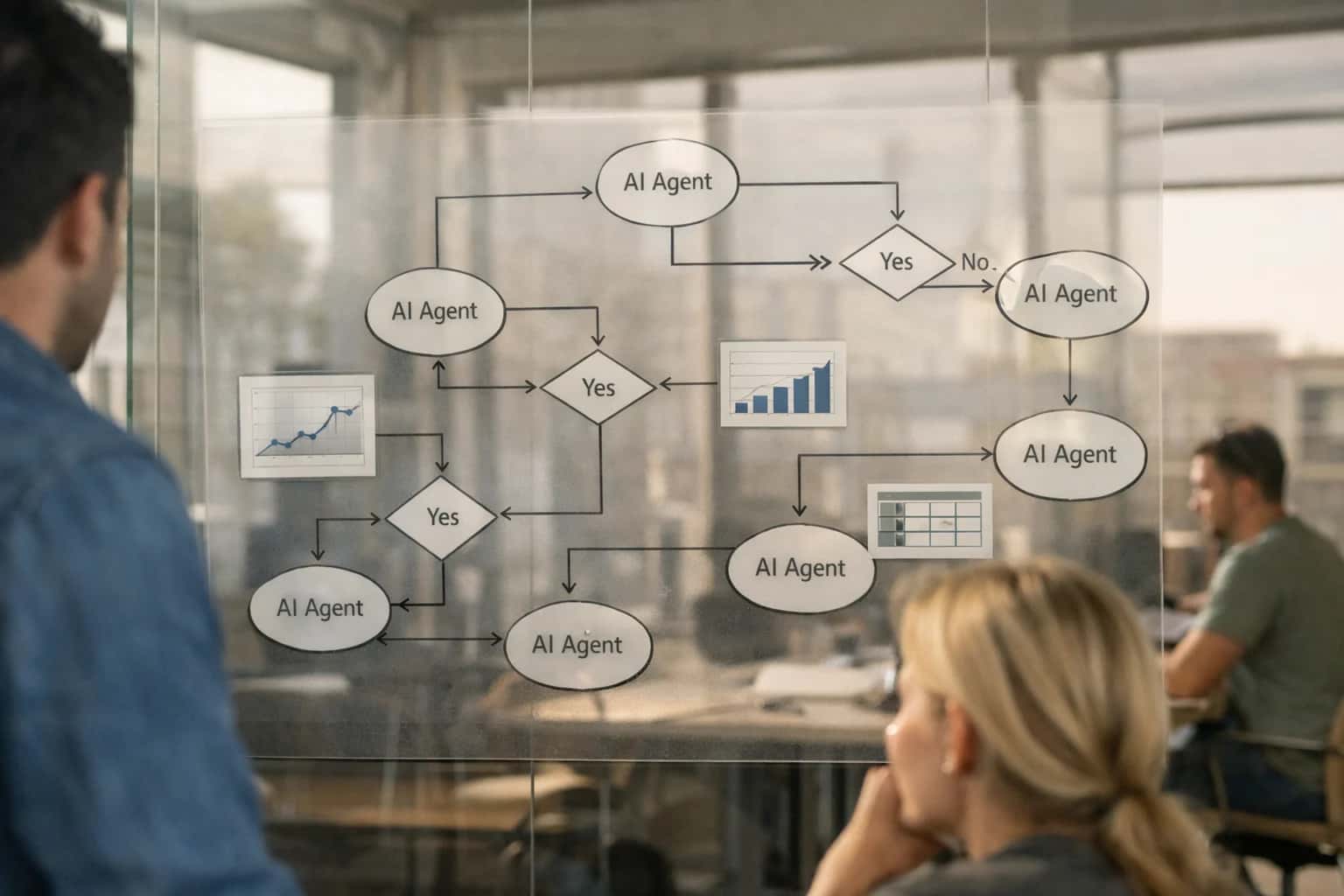
ARCHITECTURE & GOVERNANCE
From Noise to Knowledge: AI-Enhanced SharePoint Alerts
Transform basic SharePoint change notifications into intelligent, actionable insights using AI to summarize, prioritize, and route.
The implementation typically involves a serverless function (Azure Function/AWS Lambda) that subscribes to change events. When triggered, it fetches the updated content via the Graph API, passes it through an LLM with a prompt engineered for SharePoint contexts (e.g., "Summarize the key changes made to this project charter document"), and then enriches the original alert payload. The enriched alert can be delivered back through the native SharePoint notification system, via Microsoft Teams, or into a dedicated dashboard. Key governance considerations include:
- Security Trimming: The AI service must operate under the same user context or application permissions to respect SharePoint's item-level permissions, ensuring summaries are only generated for content the user can already access.
- Data Residency: Processing must occur within compliant geographic boundaries, especially for regulated content.
- Audit Trail: All AI processing events should be logged, linking the original SharePoint change ID to the generated summary for traceability.
Rollout should be phased, starting with a pilot on a high-value, low-risk library like a project documentation site. Measure success by the reduction in users clicking through to view full documents unnecessarily and by feedback on alert usefulness. This turns a passive notification system into an active knowledge distribution layer, reducing context-switching and helping teams stay informed without being overwhelmed.
INTEGRATION SURFACES
Where AI Connects to SharePoint Alerting
Core Document and Data Change Triggers
AI integration starts at the foundational alert layer: SharePoint's native alerting system for lists and libraries. When a user subscribes to alerts for additions, modifications, or deletions, you can intercept these events via the Microsoft Graph API (/subscriptions endpoint) or SharePoint webhooks.
Instead of sending a raw "Document X was modified" email, an AI agent processes the change. It can:
- Summarize the delta: Compare versions to generate a concise summary of what changed.
- Extract key entities: Pull out mentioned dates, people, project codes, or financial figures from the new content.
- Assess relevance: Score the alert's importance for the subscriber based on their past interactions and the content's context.
This transforms a basic notification into an intelligent briefing, allowing users to triage updates in seconds instead of opening and skimming each document.
SHAREPOINT ALERTS
High-Value Use Cases for Intelligent Alerts
Move beyond basic 'something changed' notifications. Integrate AI with SharePoint alerts to summarize updates, highlight relevance, and suggest next actions—turning noise into actionable intelligence for teams and workflows.
01
Contract & Policy Change Summaries
When a legal or procurement team member modifies a contract template or policy document in a SharePoint library, an intelligent alert provides a concise summary of the changes, highlights modified clauses, and flags potential compliance impacts based on the document's metadata and classification.
Minutes vs. Manual Review
Time to understand impact
02
Project Deliverable Status Updates
For project sites, AI analyzes new document uploads or task list updates. Instead of a generic alert, it generates a brief status summary (e.g., 'Final deliverable submitted, awaiting QA'), extracts key dates or blockers mentioned, and can auto-update connected project dashboards in Power BI or Microsoft Planner.
Batch -> Real-time
Status visibility
03
Automated Support Ticket Triage
When a new support request form is submitted via a SharePoint list, AI reads the description, classifies urgency and category, and suggests routing to the appropriate team queue in ServiceNow or Teams. The alert sent to the support manager includes this triage reasoning and proposed next steps.
Same-day
Initial response target
04
Compliance & Audit Trail Monitoring
AI monitors sensitive document libraries for unauthorized changes or access. Intelligent alerts detect anomalies—like a financial report edited after close—and provide a contextual summary of the event (user, time, change type) for immediate review by compliance officers, integrating with audit logs for a full trail.
05
RFP & Proposal Collaboration Notifications
During a collaborative RFP response in a SharePoint site, AI tracks contributions across documents and lists. Alerts to the proposal manager summarize team progress, identify sections missing input, and even draft a daily stand-up update by synthesizing check-in comments and version histories.
1 sprint
Proposal cycle reduction
06
Knowledge Base Article Relevance Alerts
When a new solution document is added to a knowledge base library, AI analyzes its content against recent support tickets or forum posts. The alert to content owners highlights which common user questions the new article may answer, suggesting potential linking opportunities to improve self-service findability.
FROM BASIC NOTIFICATIONS TO INTELLIGENT ACTIONS
Example AI Alert Workflows
Move beyond simple 'something changed' emails. These workflows show how AI can analyze SharePoint alert triggers—new files, list item updates, or permission changes—to deliver context-aware summaries, highlight risks, and suggest next steps.
Trigger: A new document is added to the 'Active Contracts' library or an existing contract document is modified.
AI Action:
- The AI agent is triggered via a Microsoft Graph webhook or Power Automate flow.
- It retrieves the new/updated document and uses an LLM to perform a diff analysis against the previous version.
- The model extracts and summarizes key changes: altered clauses, modified dates, new obligations, or updated financial terms.
- It cross-references the contract party against the CRM (via a pre-built connector) to pull the account owner and relationship health score.
Intelligent Alert: An alert is posted to a designated Microsoft Teams channel or sent via email that includes:
- A one-paragraph summary of material changes.
- A bulleted list of specific amended clauses.
- The associated account owner and a note if the relationship is flagged as 'at-risk'.
- A direct link to the document and a suggestion to 'Review with Legal'.
Human Review Point: The alert is the review point. The legal or account team uses the AI-generated summary to prioritize their manual review.
FROM SIMPLE NOTIFICATIONS TO INTELLIGENT ALERTS
Implementation Architecture: Data Flow & Integration Points
A practical blueprint for connecting AI to SharePoint's alerting system to summarize changes, highlight relevance, and suggest next actions.
The integration connects at two primary points: the SharePoint Event Receiver layer and the Microsoft Graph API. When a user subscribes to an alert on a list, library, or item, the native SharePoint alert engine fires. Our architecture intercepts this event via a registered webhook or a SharePoint Add-in. The raw alert data—including the changed item's URL, modified fields, editor, and timestamp—is captured and queued for AI processing before the standard email is sent.
The queued event triggers an Azure Function or similar serverless process. This function retrieves the full context of the change using the Microsoft Graph API (/sites/{site-id}/lists/{list-id}/items/{item-id}), including the item's current state, its previous version (from versions), and any relevant metadata. This enriched payload is sent to an orchestration layer that performs three core AI operations: 1) Summarization of what changed in natural language, 2) Relevance Scoring based on the subscriber's profile and past interactions, and 3) Action Suggestion by analyzing the change type (e.g., a date field update might suggest "reschedule meeting").
The processed intelligence is then injected back into the alert delivery pipeline. Instead of a generic "Item X was modified" email, the subscriber receives a structured notification with a summary of changes, a relevance indicator (e.g., "High relevance to your Q2 project"), and suggested next steps (e.g., "Review updated budget figures" with a deep link). This all occurs within the existing SharePoint security and compliance boundary; the AI service only accesses data the subscribing user already has permission to see. Governance is maintained through audit logs for all AI processing events and optional human-in-the-loop approval for high-confidence action suggestions before they are delivered.
IMPLEMENTATION PATTERNS
Code & Payload Examples
Processing SharePoint Alert Payloads
When a SharePoint alert triggers, it sends a webhook payload to your endpoint. This handler receives the event, fetches the changed content, and prepares it for AI analysis. The key is to extract the list item ID, site URL, and change type from the incoming JSON.
python# Example: Flask endpoint for SharePoint alert webhook from flask import Flask, request, jsonify import requests from inference_systems import AlertProcessor app = Flask(__name__) ALERT_PROCESSOR = AlertProcessor() @app.route('/sharepoint/alert', methods=['POST']) def handle_alert(): payload = request.json # Extract alert details site_url = payload['webUrl'] item_id = payload['resourceData']['id'] change_type = payload['changeType'] # e.g., 'ItemAdded', 'ItemUpdated' # Fetch the updated item details via Microsoft Graph item_data = fetch_item_via_graph(site_url, item_id) # Send to AI processor for summarization/analysis ai_summary = ALERT_PROCESSOR.analyze_change(item_data, change_type) # Route the intelligent alert (e.g., to Teams, email, dashboard) route_intelligent_alert(ai_summary) return jsonify({"status": "processed"}), 200
This pattern decouples the alert trigger from the AI processing, allowing for scalable, asynchronous handling.
AI-ENHANCED ALERTS VS. NATIVE NOTIFICATIONS
Realistic Time Savings & Operational Impact
This table compares the manual effort and business impact of native SharePoint alerts versus AI-enhanced notifications that summarize changes, highlight relevance, and suggest actions.
| Workflow / Metric | Before AI (Native Alerts) | After AI (Intelligent Notifications) | Notes & Implementation Nuance |
|---|---|---|---|
Alert Triage & Prioritization | Manual scan of all alert emails | AI-generated priority score & relevance summary | Model trained on user interaction data; human can override scoring |
Understanding Document Changes | Open each document to review edits | Receive a concise summary of key additions/deletions | Summarization uses document history; highlights context around changes |
Cross-Reference & Related Content | Manual search for related files or list items | AI suggests related documents, pages, or list items impacted | Leverages SharePoint metadata, co-edit patterns, and semantic search |
Action Assignment & Routing | Manual forwarding or @mention in Teams | AI suggests next steps and potential assignees based on content | Integrates with Microsoft Graph for org chart and recent collaborator data |
Compliance & Policy Flagging | Relies on user awareness or periodic audits | AI scans alert content for potential policy violations (PII, sensitive terms) | Runs lightweight classification; flags for review, does not auto-delete |
Rollout & User Adoption Phase | Pilot: Manual configuration for test group (2-3 weeks) | Pilot: AI models fine-tuned on pilot group data (3-4 weeks) | Initial model requires sample alert data; accuracy improves with usage |
Weekly Time Spent on Alert Management | 2-4 hours per knowledge worker | 30-60 minutes per knowledge worker | Savings come from reduced context-switching and faster decision-making |
ARCHITECTING A CONTROLLED DEPLOYMENT
Governance, Security, and Phased Rollout
A practical approach to deploying intelligent SharePoint alerts with enterprise-grade controls and measurable impact.
A production AI integration for SharePoint alerts operates on a webhook-driven architecture. When a configured alert triggers (e.g., a document is modified in a Document Library or a list item changes in a Project Site), SharePoint sends an event payload to a secure API endpoint. This endpoint, managed within your Azure tenant or private cloud, invokes an AI orchestration layer. This layer retrieves the changed content via the Microsoft Graph API, applies LLM processing for summarization and analysis, and returns a structured, enriched notification. This design keeps sensitive document content within your Microsoft 365 boundary; only the AI-generated summary and metadata are sent to the final notification channel (e.g., Microsoft Teams, email).
Rollout follows a phased, risk-aware model:
- Phase 1: Pilot & Validation: Enable AI alerts for a single, low-risk
Communications SiteorTeam Siteused by a controlled group. Focus on document library updates, generating summaries ofWord,PDF, andExcelfile changes. Measure accuracy and user feedback. - Phase 2: Controlled Expansion: Extend to high-value sites like
Project ManagementorCompliancerepositories. Introduce logic to filter alerts—for example, only summarizing documents tagged with specificManaged Metadataor modified by certain user groups to reduce noise. - Phase 3: Enterprise Scaling: Implement site-level opt-in governance, where site owners can activate AI alerts through a provisioning workflow. Integrate with
Azure Monitorfor operational dashboards tracking alert volume, processing latency, and user engagement metrics.
Governance is enforced at multiple layers. Data Security: The AI service uses the principle of least privilege, accessing SharePoint content via a service principal with scoped Sites.Read.All permissions. Content Filtering: Pre-processing rules can exclude sensitive Content Types or libraries from AI analysis. Human Review: For critical sites, a hybrid model can be used where AI generates a draft summary, but a final approval step is required before the alert is sent. All AI interactions are logged with full audit trails, linking the original SharePoint event, the document version, the generated summary, and the notification recipient for compliance and model improvement.
Enabling Efficiency, Speed & Accuracy
Intelligent Analysis, Decision & Execution
We build AI systems for teams that need search across company data, workflow automation across tools, or AI features inside products and internal software.
Talk to Us
Search across company data
Give teams answers from docs, tickets, runbooks, and product data with sources and permissions.
Useful when people spend too long searching or get different answers from different systems.
Enterprise searchRAGPermissions
Read more
Automate internal workflows
Use AI to route work, draft outputs, trigger actions, and keep approvals and logs in place.
Useful when repetitive work moves across multiple tools and teams.
AI agentsWorkflow automationGovernance
Read more
Add AI to products and internal tools
Build assistants, guided actions, or decision support into the software your team or customers already use.
Useful when AI needs to be part of the product, not a separate tool.
AI integrationDecision supportModel routing
Read moreIMPLEMENTATION AND OPERATIONS
Frequently Asked Questions
Practical questions for teams planning to add AI intelligence to SharePoint's native alerting system.
The integration is event-driven and sits as a middleware layer. Here’s the typical data flow:
- Trigger: A user or workflow creates, updates, or deletes an item in a SharePoint list, library, or page.
- Event Capture: Instead of relying solely on SharePoint's outbound email service, the integration uses the Microsoft Graph API or SharePoint webhooks to capture the change event in near real-time.
- Context Enrichment: The system retrieves the changed item's content, metadata, and relevant historical context (e.g., previous versions, related list items).
- AI Processing: This enriched payload is sent to an AI orchestration layer (e.g., Azure OpenAI, a hosted LLM) with a prompt engineered to:
- Summarize the key changes.
- Highlight content relevant to the alert recipient's role or past interactions.
- Suggest potential next actions (e.g., "Review clause 4.2," "Approve this change," "Contact the author for clarification").
- Delivery: The AI-generated summary and insights are injected into a templated email or Microsoft Teams notification, which is then delivered to the subscriber, replacing or augmenting the standard SharePoint alert email.

About the author
Prasad Kumkar
CEO & MD, Inference Systems
Prasad Kumkar is the CEO & MD of Inference Systems and writes about AI systems architecture, LLM infrastructure, model serving, evaluation, and production deployment. Over 5+ years, he has worked across computer vision models, L5 autonomous vehicle systems, and LLM research, with a focus on taking complex AI ideas into real-world engineering systems.
His work and writing cover AI systems, large language models, AI agents, multimodal systems, autonomous systems, inference optimization, RAG, evaluation, and production AI engineering.
LinkedIn
Limited slotsGet a Free AI Consultation
Partnered with leading AI, data, and software stack.





How We Work
Custom AI workflows for your Business
One-fit-all AI don't work for modern businesses. At Inferensys, we aim to understand your business & custom requirements; which we use to define most efficient agentic workflows, the data, and the tools for your business.
01
Review the use case
We understand the task, the users, and where AI can actually help.
Read more02
Pick the right approach
We define what needs search, automation, or product integration.
Read more03
Build the first useful version
We implement the part that proves the value first.
Read more04
Improve from there
We add the checks and visibility needed to keep it useful.
Read moreThe first call is a practical review of your use case and the right next step.
Talk to Us