
Inferensys

Integration

AI Integration for Power BI

Build secure AI integrations with the Power BI Service and REST APIs to embed natural language query, automated commentary, and anomaly detection directly into reports and datasets for business users.
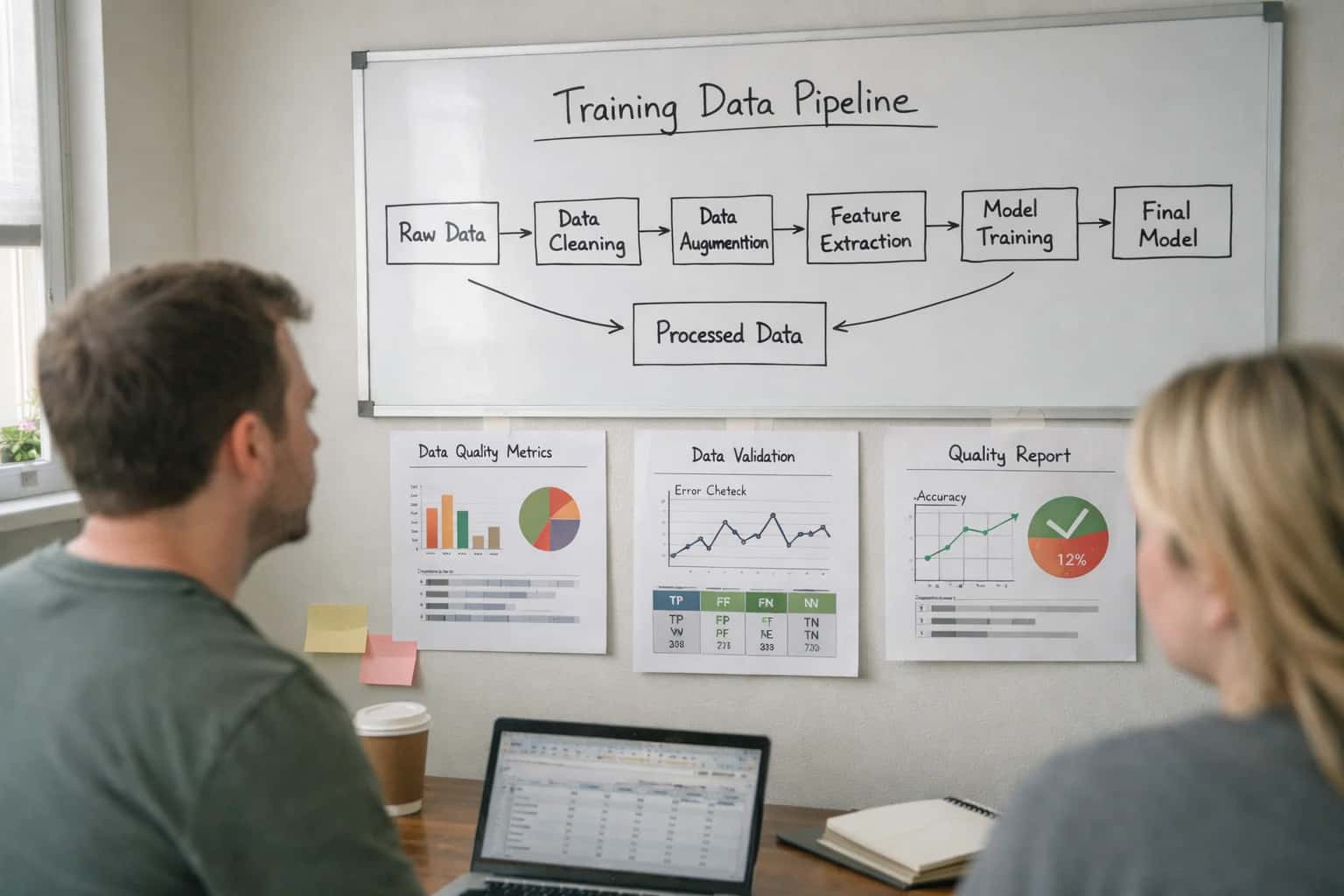
Data scientist building training data pipeline on laptop, data preprocessing visible, technical workspace.
ARCHITECTURE AND IMPLEMENTATION

Where AI Fits into the Power BI Stack

A practical guide to embedding AI agents, natural language analytics, and automated insight generation into the Power BI Service, datasets, and reports.

AI integrations connect to three primary surfaces within the Microsoft Power BI ecosystem: the Power BI Service REST APIs, the XMLA endpoint for live dataset querying, and embedded Power BI visuals or custom visuals framework. Core integration targets include:

  • Datasets & Dataflows: Inject AI-generated features, classifications, or predictions directly into refresh cycles using the Power BI REST API or via a connected Azure Data Factory/Azure Synapse pipeline.
  • Reports & Dashboards: Use the Power BI Embedded service or the JavaScript API to embed conversational Q&A interfaces, attach AI-generated commentary to KPIs, or trigger alerts based on AI-detected anomalies.
  • Semantic Models: Leverage the XMLA endpoint to execute DAX or MDX queries from an external AI agent, enabling complex, on-demand analysis without moving data.
  • Automation & Governance: Orchestrate report distribution, dataset refresh, and permission management via the Power BI Admin API, integrating AI for personalized content delivery and automated data quality checks.


Implementation typically follows a serverless pattern: an Azure Function or Logic App acts as the orchestration layer. This service listens for events (e.g., a dataset refresh completes via a webhook, a user opens a specific report) via the Power BI API or Microsoft Graph. It then calls an AI service—such as Azure OpenAI, a fine-tuned model, or a RAG pipeline over enterprise data—processes the result, and writes back to Power BI. For example:

A daily sales dashboard refresh triggers an Azure Function. The function queries the latest dataset via the XMLA endpoint, runs an LLM agent to analyze regional performance outliers, and uses the Power BI REST API to post the analysis as a textbox visual or a comment on a specific tile. This creates a self-updating, narrative-driven dashboard.

Rollout requires careful governance. AI-generated insights should be clearly labeled, and a human-in-the-loop approval step is recommended for executive-facing commentary before publication. Access to the underlying service principal credentials (used for API access) must be secured via Azure Key Vault. Furthermore, all AI-generated content and prompts should be logged to an audit trail, such as Azure Monitor or a dedicated LLMOps platform, for compliance, drift detection, and continuous improvement. Start with a pilot on a single, high-impact dashboard—like a weekly sales performance report—to validate the architecture, measure user adoption, and refine prompts before scaling across the tenant.

ARCHITECTURAL BLUEPRINTS

Key Integration Surfaces in Power BI

Core Platform Connectivity

The Power BI Service REST API is the primary surface for programmatic AI integration. It provides endpoints for managing datasets, reports, dashboards, and dataflows, enabling AI agents to read metadata, push enriched data, or trigger refreshes.

Key Integration Points:

  • Dataset Management: Ingest AI-generated insights (e.g., forecast values, anomaly flags) as new tables or rows into existing datasets via the POST /datasets/{datasetId}/rows endpoint.
  • Tile & Visual Updates: Use the POST /reports/{reportId}/rebind API to connect reports to AI-augmented datasets, or update tile details to reflect AI-generated commentary.
  • Embedded Analytics: For customer-facing apps, use the Embed Token service to securely surface AI-powered dashboards where natural language queries are processed before visualization rendering.

This API layer allows you to treat Power BI as a dynamic canvas, where AI workflows update the underlying data and metadata that business users interact with daily.

BEYOND THE DASHBOARD

High-Value AI Use Cases for Power BI

Move from static dashboards to intelligent, conversational, and proactive analytics. These integration patterns connect the Power BI Service and REST APIs to AI workflows, embedding natural language, automated insight generation, and anomaly detection directly into your data culture.

01

Natural Language Query & Conversational Analytics

Embed a copilot that lets users ask questions in plain English (e.g., "What were Q3 sales in the Northeast for product line X?"). The agent translates this into a DAX query via the Power BI REST API, executes it against the semantic model, and returns a narrative answer with a supporting chart. Operational value: Drastically reduces the time analysts spend building ad-hoc reports and empowers business users with self-service.

Hours -> Minutes
Ad-hoc analysis speed
02

Automated Commentary & Executive Summaries

Build a scheduled workflow that triggers after a critical report refresh. The system consumes the updated dataset via the API, uses an LLM to analyze KPI movements, correlations, and outliers, and then posts AI-generated, context-aware commentary directly into the report's text boxes or as a pinned comment. This turns a dashboard of numbers into a narrated story for leadership reviews.

Same day
Report-to-insight cycle
03

Proactive Anomaly Detection & Alerting

Instead of manual monitoring, deploy an AI agent that continuously polls key metrics from Power BI datasets. It applies statistical and ML models to detect significant deviations, determines probable root causes by analyzing related dimensions, and automatically triggers alerts via Teams, email, or creates a high-priority ticket in ServiceNow/ITSM. This shifts analytics from reactive to proactive operations.

Batch -> Real-time
Issue detection
04

Smart Data Preparation & Modeling

Integrate AI directly into the data preparation workflow. An agent can analyze source data in Power Query, suggest optimal transformations, recommend data type changes, and propose relationships for the data model. For complex DAX measures, it can generate and explain code based on a natural language description (e.g., "rolling 12-month average"), accelerating dataset development.

1 sprint
Model development time
05

Action-Oriented Dashboards with Workflow Triggers

Create interactive dashboards where insights lead directly to actions. When an AI-enhanced KPI (e.g., inventory stock-out risk) breaches a threshold, the dashboard includes a button that, when clicked, uses the Power BI API to fetch relevant context and automatically populates and routes a form in Salesforce, SAP, or Coupa to initiate a purchase order or replenishment workflow.

Insight → Action
Workflow integration
06

Governance, Lineage & Quality Monitoring

Deploy an AI monitor that scans Power BI metadata, usage logs, and dataset refresh histories. It automatically tags sensitive data (PII), detects broken data lineage, identifies underutilized reports for cleanup, and flags data quality drifts by comparing summary statistics over time. Findings are logged to a governance platform like Collibra or generate tickets for the BI team.

Manual → Automated
Compliance oversight
IMPLEMENTATION PATTERNS

Example AI-Powered Workflows for Power BI

These workflows illustrate how to securely embed AI agents into the Power BI service using its REST APIs, Azure AI services, and enterprise data. Each pattern connects insights to action.

Trigger: A scheduled refresh of a Power BI dataset containing daily/weekly KPIs (e.g., sales, marketing, operations).

Context Pulled: The agent calls the Power BI REST API's GetDataset and ExecuteQueries endpoints to retrieve the latest metric values and their historical trends for a specific report page.

Agent Action: A configured LLM (e.g., Azure OpenAI) receives the metric data and a structured prompt with rules:

  • Identify metrics that changed beyond a defined threshold (e.g., >10%).
  • Generate a concise, neutral narrative explaining the change, referencing prior periods.
  • Flag any metrics requiring immediate attention.

System Update: The agent uses the Power BI API to update a dedicated commentary table in the dataset or posts the narrative as a summary text visual on the dashboard. Alternatively, it can trigger a Power Automate flow to email the commentary to stakeholders.

Human Review Point: Before publication, the commentary can be routed to a data steward for approval via a simple webhook to a review queue, ensuring governance over automated narratives.

PRODUCTION-READY INTEGRATION PATTERNS

Implementation Architecture: Data Flow, APIs, and Guardrails

A secure, scalable architecture for connecting AI to Power BI datasets, reports, and the service fabric.

A production AI integration for Power BI typically connects at three layers: the Power BI Service REST API, the XMLA endpoint for dataset querying, and the Power BI Embedded service for customer-facing applications. The core data flow begins with an AI agent or workflow (e.g., an Azure Function or containerized service) authenticating via a service principal to call the Datasets or Reports APIs. It executes a DAX query via the XMLA endpoint to retrieve filtered, aggregated data—never raw PII at scale—which is then passed to a governed LLM for analysis. The output, such as a narrative insight or anomaly flag, is written back as a Power BI dataset (for visualization), posted as a comment via the Tile API, or used to update a Power Automate-triggered workflow in connected systems like Dynamics 365 or SharePoint.

Key implementation details involve managing state and context. For natural language query, a user's question in a Copilot pane is translated into a parameterized DAX query using a few-shot prompt that understands your data model's tables and measures. The query result is formatted and fed to a secondary LLM call for plain-English summarization. For automated commentary, a scheduled agent scans a paginated report's data, uses statistical functions to identify outliers or trends, and generates context-aware text that is injected as a dynamic textbox via the API. Guardrails are critical: all prompts are versioned and logged, LLM calls include Azure AI Content Safety filters, and data retrieval is scoped by row-level security (RLS) rules from the user's or service principal's context to enforce data governance.

Rollout follows a phased approach: start with a read-only, internal-facing agent for a single dashboard (e.g., sales pipeline commentary), instrument detailed logging and human feedback loops, then expand to write-back actions and external embedded analytics. Governance checkpoints include audit logs for all API calls and LLM interactions, approval workflows for AI-generated content before publication to executive reports, and regular reviews of the cost and accuracy of DAX query generation. The integration is built to be resilient—if the LLM call fails, the system falls back to a templated insight or queues the task for retry, ensuring dashboards remain functional.

POWER BI AI INTEGRATION PATTERNS

Code and Payload Examples

Automating Data Enrichment with AI

Integrate AI directly into your Power BI data pipelines to enrich datasets before they hit the report canvas. Use the Power BI REST API to trigger a refresh, then call an AI service to add new columns like sentiment scores, entity extraction, or predictive classifications.

A common pattern is to use an Azure Function or Logic App as an orchestrator. After the data lands in your data warehouse (e.g., Azure Synapse, Snowflake), the function calls an Azure OpenAI endpoint or a custom ML model to process text fields, then writes the enriched results back to a staging table. Finally, it triggers the Power BI dataset refresh via the API.

Example Payload for Enrichment Request:

json
{
  "datasetId": "cfafbeb1-8037-4d0c-896e-a46fb27ff229",
  "notifyOption": "MailOnFailure",
  "applyRefreshPolicy": false,
  "commitMode": "Transactional",
  "retryCount": 2
}

This payload initiates a dataset refresh via the POST /datasets/{datasetId}/refreshes endpoint, which can be chained after your AI processing step completes.

AI-ENHANCED POWER BI WORKFLOWS

Realistic Time Savings and Operational Impact

This table illustrates the operational impact of integrating AI agents with the Power BI Service and REST APIs, focusing on realistic time savings and workflow changes for business users and analysts.

Workflow / TaskBefore AI IntegrationAfter AI IntegrationImplementation Notes

Natural Language Query Generation

Manual DAX/Power Query writing, analyst dependency

Assisted query drafting via copilot, human validation

Copilot suggests DAX/M, user reviews and executes; reduces analyst ticket backlog.

Executive Report Commentary

Manual analysis and narrative writing for weekly reports

Automated insight generation with human editorial review

AI scans key dashboards, drafts commentary; analyst or manager refines for context.

Anomaly Detection & Alerting

Manual KPI monitoring or scheduled email alerts

Proactive anomaly detection with root-cause suggestions

AI models monitor dataset refreshes, flag outliers, and suggest related dimension slices.

Data Preparation Guidance

Trial-and-error in Power Query Editor, forum searches

AI-assisted transformation suggestions and error debugging

Copilot analyzes source data, recommends M code steps; user maintains control.

Dashboard Consumption & Q&A

Static report viewing, manual exploration to answer ad-hoc questions

Conversational Q&A interface over published datasets

Users ask follow-ups in plain language; AI translates to queries against the semantic model.

Report Distribution & Personalization

Manual filtering and PDF export for different stakeholders

Automated, audience-specific report slicing and delivery

AI agents use row-level security (RLS) context to generate and email tailored views.

Data Quality Monitoring

Scheduled manual checks or reactive issue discovery

Automated scan of dataset refreshes for freshness and schema drift

AI validates refresh logs and metadata, alerts on failures or unexpected changes.

ARCHITECTING FOR ENTERPRISE CONTROL

Governance, Security, and Phased Rollout

A secure AI integration for Power BI is built on Microsoft's security model, augmented with layered controls for data, prompts, and user access.

Your integration architecture must respect Power BI's existing data security layer (RLS/OLS) and Azure Active Directory permissions. AI agents should be configured as service principals with least-privilege access, scoped to specific workspaces, datasets, or reports. All queries and data flows should be logged to Azure Monitor or a dedicated audit log, capturing the original user context, the dataset accessed, the generated query (e.g., DAX or M), and the AI's response. This creates a transparent audit trail for compliance and troubleshooting.

A phased rollout mitigates risk and builds user trust. Start with a controlled pilot in a single department (e.g., Finance), enabling AI features like natural language query for a pre-vetted set of certified datasets. Use this phase to tune prompts, establish quality benchmarks, and gather user feedback. Next, expand to automated commentary on executive dashboards, where AI generates narrative summaries for KPIs. Finally, introduce anomaly detection agents that monitor live data streams and post alerts to Power BI service or Microsoft Teams, triggering investigative workflows.

Governance is continuous. Establish a prompt management layer to version-control and evaluate the instructions that shape AI behavior for different report types. Implement a human review queue for high-stakes generated content before it's published to a board report. For integrations using the Power BI REST API, enforce rate limiting and implement retry logic with exponential backoff to handle service interruptions gracefully. This layered approach ensures your AI-enhanced Power BI environment remains reliable, explainable, and aligned with business objectives.

IMPLEMENTATION AND WORKFLOW DETAILS

FAQ: AI Integration for Power BI

Practical answers to common technical and architectural questions about building secure, production-ready AI agents and automations for the Power BI Service.

A production integration uses the Power BI REST API with Azure Active Directory (AAD) for authentication. The typical pattern is:

  1. Register an Azure AD App: Create an app registration with delegated or application permissions (e.g., Dataset.Read.All, Report.Read.All).
  2. Implement Secure Credential Flow: For automated agents, use the OAuth 2.0 client credentials flow with a certificate or client secret stored in Azure Key Vault.
  3. Scope Access with Service Principals: Assign the AAD app to specific Power BI workspaces via the Power BI Admin Portal, following the principle of least privilege.
  4. Query via the API: The agent uses the secured token to call endpoints like /datasets/{id}/executeQueries to run DAX or export data, or /reports/{id}/pages to fetch visual state.

Security Note: Never embed service account credentials in code. All API calls should be made from a trusted, private backend service, not client-side.

Prasad Kumkar

About the author

Prasad Kumkar

CEO & MD, Inference Systems

Prasad Kumkar is the CEO & MD of Inference Systems and writes about AI systems architecture, LLM infrastructure, model serving, evaluation, and production deployment. Over 5+ years, he has worked across computer vision models, L5 autonomous vehicle systems, and LLM research, with a focus on taking complex AI ideas into real-world engineering systems.

His work and writing cover AI systems, large language models, AI agents, multimodal systems, autonomous systems, inference optimization, RAG, evaluation, and production AI engineering.


