
Inferensys

Integration

AI-Powered Workflow Automation with Microsoft Copilot Studio

Transform Microsoft Copilot Studio from a conversational chatbot into an intelligent workflow engine. This guide shows how to connect Copilot Studio to Power Automate for document generation, data entry, and notification routing across Microsoft 365.
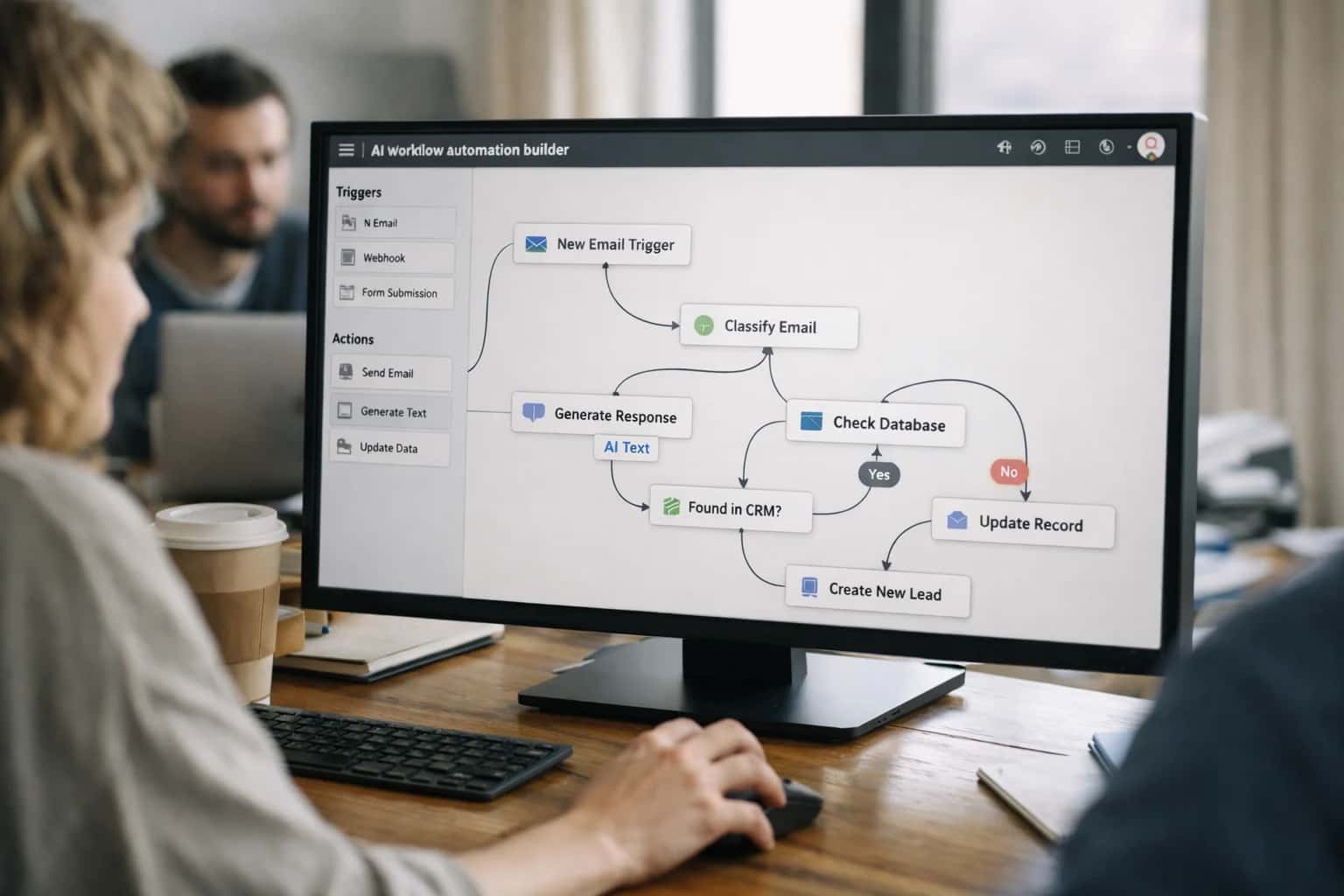
Operations team reviewing AI workflow automation on laptop, workflow builder visible, casual office setup.
ARCHITECTURE & ROLLOUT

From Chatbot to Workflow Engine

Transforming Microsoft Copilot Studio from a conversational interface into an autonomous orchestrator of business processes.

A standard Copilot Studio bot excels at Q&A, but its true enterprise value is unlocked when it becomes a workflow initiator and participant. This means designing topics that don't just answer a question, but trigger a multi-step process in Power Automate, update records in Dataverse or SharePoint, and route outcomes back to the user in Microsoft Teams. Key surfaces for integration include:

  • Power Automate Cloud Flows: Triggered via the "Call an action" node to execute logic, call APIs, or manipulate data.
  • Microsoft Graph API: For interacting with Calendar, Email, OneDrive, and Planner directly from a bot conversation.
  • Custom Connectors: To securely call external SaaS APIs (like Salesforce, ServiceNow, or SAP) without exposing credentials in the bot logic.
  • Adaptive Cards: To present dynamic forms, approval buttons, or data summaries within the chat, collecting structured user input for the next workflow step.


Implementation requires a shift from linear dialog trees to stateful, context-aware workflows. For example, an employee asking "How do I request a new laptop?" can trigger a workflow where the Copilot Studio agent:

  1. Gathers Context: Asks follow-up questions (budget code, justification) using variables stored in the conversation.
  2. Executes Business Logic: Calls a Power Automate flow that creates a SharePoint List item (the request) and a Planner task for IT procurement.
  3. Orchestrates Approval: Uses the Adaptive Card to present the request summary to the employee's manager within Teams for one-click approval.
  4. Provides Status Updates: Subscribes to the SharePoint list via a webhook, allowing the bot to proactively message the user when the request status changes to "Ordered" or "Shipped." This turns a simple FAQ into a closed-loop, automated process that reduces manual data entry and follow-up emails.

Rollout and governance are critical. Start with a pilot team and a single high-volume, well-defined workflow (like IT equipment requests or meeting room bookings). Use Power Platform environments to separate development, testing, and production. Implement Data Loss Prevention (DLP) policies to control which connectors your Copilot Studio bots can access. Audit trails are maintained across the chain: Copilot Studio provides conversation logs, Power Automate retains flow run history, and actions in systems like SharePoint or Dynamics 365 have their own native audit logs. This layered approach ensures you can trace any automated action back to the original user prompt and intermediate decisions.

AI-POWERED WORKFLOW AUTOMATION

Where AI Connects: Copilot Studio's Integration Surfaces

Initiate Flows from Conversational Context

Copilot Studio topics can be configured as triggers for Power Automate flows. When a user's query matches a specific intent, the conversation variables (like UserQuery, UserName, or custom entities) are passed as input to a cloud flow.

Example Workflow: A user asks, "Generate a contract for Acme Corp." The Copilot Studio topic extracts the company name and passes it to a Power Automate flow. The flow retrieves the latest template from SharePoint, populates it with data from Dynamics 365, and emails a draft to the user—all without leaving the Teams chat.

This surface is ideal for automating multi-system processes that start with a user's question, such as document generation, data entry, or notification routing across Microsoft 365.

MICROSOFT COPILOT STUDIO

High-Value Use Cases for Copilot-Powered Automation

Copilot Studio transforms from a conversational chatbot into a workflow engine when integrated with Power Automate and Microsoft 365 APIs. These patterns show where to inject AI-driven automation into daily operations.

01

Automated Document Generation & Routing

Trigger a Copilot Studio agent to gather requirements via a Teams chat, then use a Power Automate flow to draft a document (e.g., SOW, project charter) in Word, populate it with data from SharePoint Lists or Dynamics 365, and route it via email for approval. The agent can then follow up on the approval status.

Days -> Hours
Document cycle time
02

Intelligent Notification & Triage

Deploy a Copilot Studio agent as a central notification hub in Teams. It receives webhooks from monitoring tools, support tickets, or ERP systems, uses AI to summarize and prioritize the alert, and then triggers different Power Automate flows based on severity—paging an on-call engineer, creating a Planner task, or posting to a channel.

Batch -> Real-time
Incident response
03

Guided Data Entry & Validation

Build a multi-turn Copilot Studio topic that interactively collects data for a complex form (e.g., new vendor setup, expense report). The agent validates entries against rules or existing data in Dataverse, then uses a Power Automate flow to write the validated record to the target system (SharePoint, SQL, SAP) and log the submission.

75% Reduction
In rework errors
04

Self-Service HR & IT Operations

Enable employees to ask a Copilot Studio agent in Teams for common service requests like password resets, software access, or PTO balances. The agent uses Power Automate to call the appropriate Graph API or ServiceNow connector, executes the request if permitted, and provides a confirmation. Complex requests are escalated with full context.

40% Deflection
From service desk tickets
05

Meeting Coordination & Follow-Up

A Copilot Studio agent can orchestrate the entire meeting lifecycle. It schedules a Teams meeting via Graph API based on natural language, pre-populates an agenda template from a previous meeting's notes in OneNote, and after the meeting, triggers a flow to generate action items from the transcript, assign them in Planner, and share the summary.

1 Sprint
To implement standard workflow
06

Compliance & Audit Workflow Support

For regulated processes, a Copilot Studio agent guides users through a controlled procedure (e.g., policy exception request, audit evidence collection). It ensures all steps are followed, documents responses in a SharePoint list with versioning, and manages the approval chain via Power Automate, with a full audit trail of the conversation and actions.

Same Day
For audit-ready documentation
CONCRETE IMPLEMENTATION PATTERNS

Example Workflows: From Conversation to Completion

These workflows illustrate how a Copilot Studio agent, triggered by a user conversation, can orchestrate multi-step automations across Microsoft 365 and external systems using Power Automate. Each pattern moves beyond simple Q&A to execute business processes.

A new hire interacts with a Copilot Studio agent embedded in a Microsoft Teams channel for their department.

  1. Trigger: The employee asks, "What do I need to do to get set up?" or the agent proactively greets them on their start date.
  2. Context Gathered: The agent uses the authenticated user's context (from Microsoft Entra ID) to identify them as a new hire. It asks a few clarifying questions via adaptive cards (e.g., "Do you need a laptop?", "Which software tools does your manager recommend?").
  3. Agent Action & Orchestration: The agent passes the collected responses as a structured JSON payload to a Power Automate cloud flow via a Custom Connector.
  4. System Updates (Power Automate Flow):
    • Creates a new onboarding task list in the team's SharePoint site.
    • Submits a hardware request to the IT service management system (e.g., ServiceNow) via its API.
    • Triggers an account provisioning workflow in Microsoft Entra ID and assigns licenses for specified M365 apps.
    • Sends a welcome email with links and next steps via Microsoft Graph API.
  5. Completion & Human Review: The flow returns a success summary to Copilot Studio. The agent confirms completion with the user and provides a link to the SharePoint task list. The IT ticket in ServiceNow follows its standard approval workflow.
FROM CONVERSATION TO AUTOMATED ACTION

Implementation Architecture: Data Flow & System Design

A practical blueprint for connecting Microsoft Copilot Studio's conversational AI to Power Automate and Microsoft 365 services to execute multi-step business processes.

The core architecture treats a Copilot Studio agent as the conversational front-end and decision engine. It uses Power Automate as the serverless workflow layer, triggered via the "Call an action" node within a Copilot Studio topic. This action sends a structured payload—containing user-provided variables, conversation context, and intent—to a specific Power Automate flow. The flow then executes the business logic, which typically involves interacting with Microsoft 365 APIs (like Microsoft Graph for SharePoint, Outlook, or Teams) or external systems via HTTP or premium connectors. Results are returned to Copilot Studio to formulate a final response for the user.

For a document generation workflow, the data flow is: 1) User in Teams asks the Copilot, "Draft a project charter for Contoso." 2) Copilot Studio collects missing details (budget, timeline, stakeholders) via a multi-turn dialog. 3) Upon completion, it triggers a Power Automate flow, passing the collected variables. 4) The flow retrieves a template from a SharePoint Document Library, populates it using the Populate a Microsoft Word template action, saves the new document, and generates a sharing link. 5) The flow returns the link and metadata to Copilot Studio, which announces, "I've created the charter and saved it here." This turns a 15-minute manual task into a guided, 60-second interaction.

Rollout requires a phased approach: start with a single, high-volume workflow like notification routing or data entry into a SharePoint list or Dataverse table. Govern access by leveraging Azure AD identities and Power Platform environment security roles. Implement audit trails by configuring flow run history and logging key payloads to Azure Log Analytics. For production, design for errors: use Power Automate's built-in retry policies and configure Copilot Studio fallback messages if a flow fails or times out. This architecture ensures AI-driven automation is reliable, traceable, and integrated directly into the Microsoft 365 ecosystem your team already uses.

AI-POWERED WORKFLOW AUTOMATION WITH MICROSOFT COPILOT STUDIO

Code & Configuration Patterns

Triggering Flows from Copilot Studio

Copilot Studio topics can invoke Power Automate flows as actions, passing user inputs as variables. This pattern is the primary mechanism for initiating backend workflows. Configure a Power Automate action node within your topic, mapping conversation variables (e.g., UserRequest, UserId) to the flow's trigger parameters.

Key configuration steps:

  1. Create an Instant Cloud Flow in Power Automate with a "Power Virtual Agents" trigger.
  2. Define input parameters in the trigger for the data your flow needs (e.g., inputText, userEmail).
  3. In Copilot Studio, add the "Call an action" node, select your flow, and map topic variables to the flow's inputs.
  4. Handle the response by capturing the flow's output variables back into your topic to continue the conversation.

This creates a seamless handoff where the conversational agent gathers context and the flow executes the multi-step automation across Microsoft 365 services like SharePoint, Outlook, or Dataverse.

AI-POWERED WORKFLOW AUTOMATION WITH MICROSOFT COPILOT STUDIO

Realistic Time Savings & Operational Impact

How integrating Microsoft Copilot Studio with Power Automate and Microsoft 365 APIs transforms manual, multi-step processes into guided, automated workflows.

WorkflowBefore AIAfter AIImplementation Notes

Document Generation & Routing

Manual template search, copy-paste, email drafting

Agent-triggered flow pulls data, populates template, routes for signature

Uses Power Automate with Word/Excel connectors; human approval for final send

Employee Onboarding Task Coordination

HR manual checklist, 10+ separate system entries

Copilot agent guides new hire, triggers account provisioning & training assignments

Integrates with Entra ID, SharePoint, Viva Learning; status tracked in adaptive card

IT Support Ticket Intake & Triage

User fills form, agent manually categorizes & routes

Conversational agent gathers details, suggests category/KB article, creates ticket

Connects to ServiceNow or Azure DevOps via custom connector; reduces misrouting

Monthly Report Compilation

Manual data pull from 3-4 sources, slide deck assembly

Agent scheduled flow aggregates data, generates PowerPoint draft, emails team

Leverages Power BI datasets & Graph API; analyst reviews for insights

Contract Review Request

Email chain to legal, manual document attachment & context

Agent in Teams channel collects details, uploads to SharePoint, notifies legal team

Uses SharePoint approval workflow; audit trail maintained in list

Expense Report Exception Handling

Finance manually flags outliers, emails manager for clarification

Agent analyzes submitted report, flags policy violations, requests clarification via adaptive card

Integrates with SAP Concur or internal APIs; reduces finance follow-up time

Meeting Scheduling & Prep

Back-and-forth emails for availability, manual agenda drafting

Agent finds mutual free time via Graph, drafts agenda from previous notes, books meeting

Requires delegate permissions; agenda uses Teams meeting notes & OneDrive files

ENTERPRISE DEPLOYMENT

Governance, Security & Phased Rollout

A practical framework for deploying AI-powered workflows with Microsoft Copilot Studio that balances automation with control.

Production AI workflows require clear governance boundaries. For Copilot Studio, this starts with Power Platform environments and Data Loss Prevention (DLP) policies to control which connectors (like SharePoint, Dataverse, or external APIs) your agents can access. Implement service principals and managed identities for secure API authentication, rather than user-level credentials. All agent interactions, variable states, and triggered Power Automate flow runs should be logged to Azure Log Analytics or a SIEM for a complete audit trail, essential for regulated processes like invoice approvals or HR case handling.

Adopt a phased rollout to manage risk and demonstrate value. Start with a pilot environment targeting a single, high-volume workflow, such as IT ticket triage or employee policy Q&A. Use Power Automate approval nodes and adaptive cards in Teams to maintain a human-in-the-loop for all critical actions during this phase. Measure success by reduction in manual steps (e.g., "ticket categorization time reduced from minutes to seconds") and user satisfaction scores. Iterate based on feedback before scaling to more complex, multi-system workflows like purchase requisitions that span Dynamics 365 and SAP.

For enterprise-wide deployment, centralize management. Create a Center of Excellence (CoE) to govern Copilot Studio topic design, variable naming, and connector usage. Use Power Platform ALM (Application Lifecycle Management) to move tested agent workflows from development to production. Finally, implement conditional access policies and sensitivity labels to ensure agents only surface data appropriate to the user's role and location, turning your Copilot Studio agents into governed extensions of your Microsoft 365 security posture.

IMPLEMENTATION BLUEPRINT

Frequently Asked Questions

Practical questions for architects and operations leaders planning to use Microsoft Copilot Studio as an intelligent workflow engine.

Copilot Studio connects to Power Automate via a Power Platform connector. Here’s the typical flow:

  1. Trigger in Copilot: A user’s utterance matches a topic (e.g., "Generate a contract for client ABC").
  2. Call a Flow: Use the 'Call an action' node within the topic to invoke a specific Power Automate flow.
  3. Pass Context: Send variables from the conversation (e.g., ClientName, ProjectValue, UserEmail) as inputs to the flow.
  4. Flow Execution: The Power Automate flow runs, performing actions like:
    • Generating a document in Word using a template and the provided data.
    • Saving it to a SharePoint library.
    • Creating a review task in Planner or Teams.
  5. Return to Conversation: The flow can return outputs (e.g., a document link, a task ID) back to Copilot Studio, which the agent can then relay to the user.

Key Technical Note: The connector uses a service principal. Ensure this principal has the necessary permissions (Power Automate licenses, access to SharePoint, etc.) in your tenant.

Prasad Kumkar

About the author

Prasad Kumkar

CEO & MD, Inference Systems

Prasad Kumkar is the CEO & MD of Inference Systems and writes about AI systems architecture, LLM infrastructure, model serving, evaluation, and production deployment. Over 5+ years, he has worked across computer vision models, L5 autonomous vehicle systems, and LLM research, with a focus on taking complex AI ideas into real-world engineering systems.

His work and writing cover AI systems, large language models, AI agents, multimodal systems, autonomous systems, inference optimization, RAG, evaluation, and production AI engineering.


